

Backups
VPS Snapshot vs Backup: What Each One Covers
A snapshot undoes your last change. A backup survives losing the server and the account. How to tell which one you have, and a 3-2-1 plan for one VPS.
By Techie Gain4 min read
Open the control panel of almost any VPS provider and you will find a tab called Backups or Snapshots, usually both, usually one click from "enable". It is easy to tick the box and feel covered. Whether you are depends on what you are afraid of.
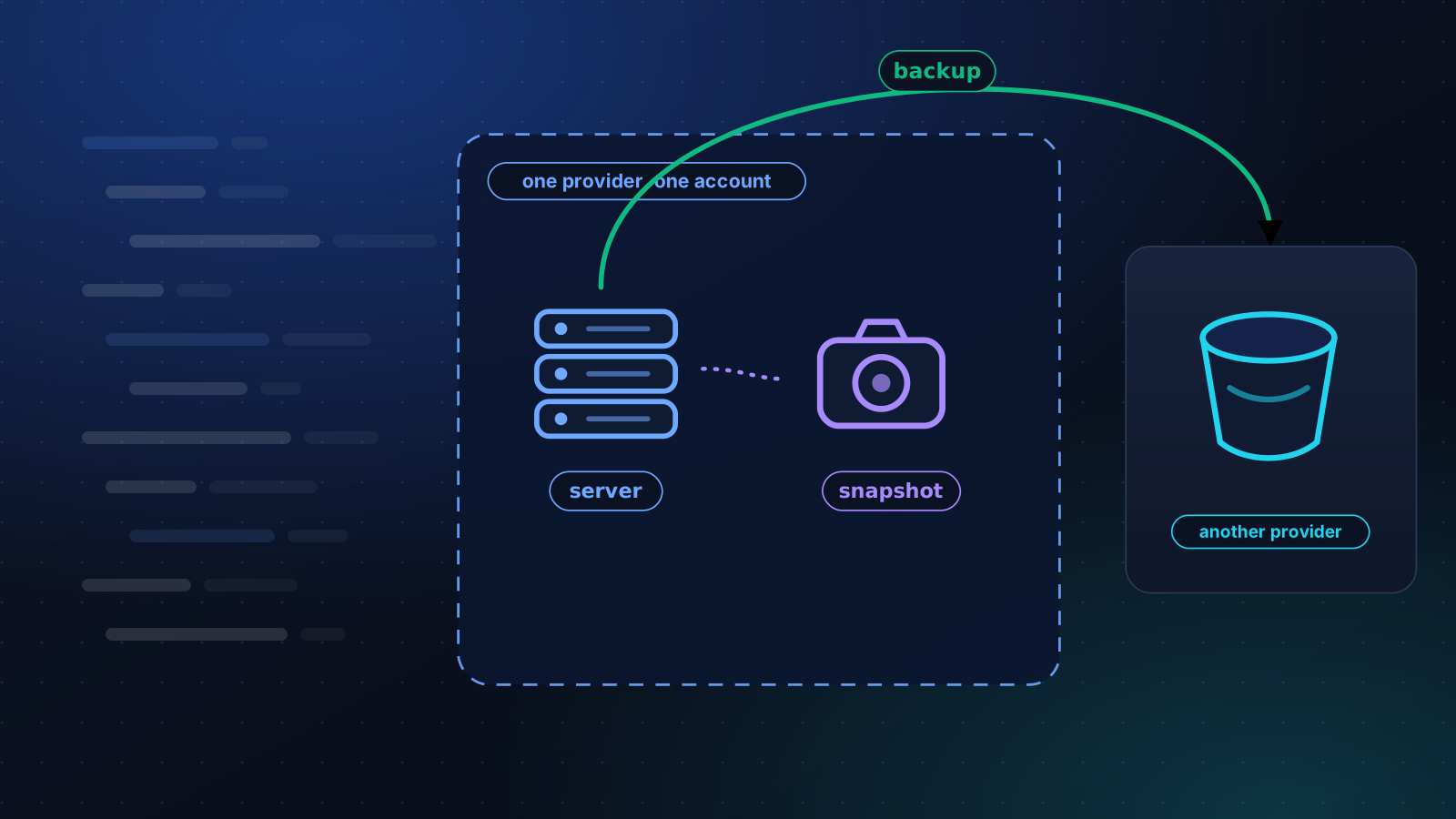
A snapshot answers one question: can I undo what I just did? A backup answers a different one: if the server, the account and the data centre disappeared tonight, what would I still have? A lot of small servers have only the first.
What a snapshot is for
A snapshot is a picture of the whole disk at one moment, kept by the provider, normally right beside the server. It is quick to take and quick to roll back, which makes it ideal before a risky change: a major upgrade, a migration, a rewrite of the web server config. If it goes wrong you are back in minutes.
It has limits worth knowing before you lean on it. It is the whole disk or nothing, so pulling out one file or one table means restoring the entire server somewhere first. Rolling back also throws away everything written since, including the orders that arrived in the meantime. It is usually crash-consistent, meaning a database that was busy at that instant recovers as if the power had been cut. InnoDB normally copes, but a database you cannot afford to be wrong about wants a proper dump alongside.
And it generally lives with the same provider, in the same place, under the same account.
Some providers sell scheduled "backups" as a separate option. Many of those are snapshots on a timer, which is better than nothing and carries the same trade-off. Read what yours actually stores, and where.
What can take both away
Providers are reliable. Accounts are the weak point. A compromised login, a billing problem that suspends the account, a mistaken termination, a script run against the wrong project: any of them can remove a server and its snapshots in the same breath. A regional outage can too, though that is rarer.
Whether snapshots survive deleting the server varies, so check yours. The more important question is whether they survive losing access to the account, and for most providers the honest answer is no.
| Question | Snapshot | File and database backup | Copy at another provider |
|---|---|---|---|
| Quick rollback after a bad change | Yes | Slower | Slowest |
| Restore one file or one table | Not directly | Yes | Yes |
| Consistent database | Crash-consistent | Yes, with a proper dump | Same as the backup |
| Survives deleting the server | Depends on the provider | Yes | Yes |
| Survives losing the account | No | Only if stored elsewhere | Yes |
The 3-2-1 rule for one server
The rule is old and it still fits. Keep three copies of your data, on two kinds of storage, with one copy somewhere else. For a single VPS it works out like this.
- The live server is the first copy.
- A nightly backup of the files and a dump of the database, stored on object storage, is the second.
- A copy of that backup in a different provider or a different account is the third, and it is the one that counts as "somewhere else".
Keep the provider snapshot as well, as the quick undo. Just do not count it as a copy.
Make one copy the server cannot delete
If the server can delete its own backups, so can whoever breaks into it, and an intruder who finds your backups is usually interested in removing them. Give the backup job a storage key that can add objects but not delete or overwrite them, turn on versioning, or use the object lock your storage offers. You pay for a little extra storage and you buy the thing a backup is for.
Ransomware that reaches a server goes looking for credentials on it: in ~/.aws, in environment files, in the backup script itself. Whatever the job uses to upload should be able to do that and nothing else.
How many copies to keep matters less than where they are. Seven daily copies and four weekly ones, kept offsite, is a reasonable default for a small site, and cheap.
What to do this week
- Find out what your provider's backup option stores, and where.
- Add a nightly offsite backup of the files and the database.
- Restore it once, somewhere that is not production.
- Turn on versioning or object lock on the bucket.
Test the part that matters
Everything above is theory until you have restored from it. Testing a restore takes half an hour and is the cheapest insurance in this post. And if you are writing the upload yourself, here is how to do it without leaving a key on the server.
If you would rather not write the plumbing, Techie Gain backups go from your server straight to storage you own, with short-lived upload links so the key never reaches the server, and a restore test every week. The platform never holds the archive itself.
Keep reading
Backups
How to Test a MySQL or PostgreSQL Backup Restore
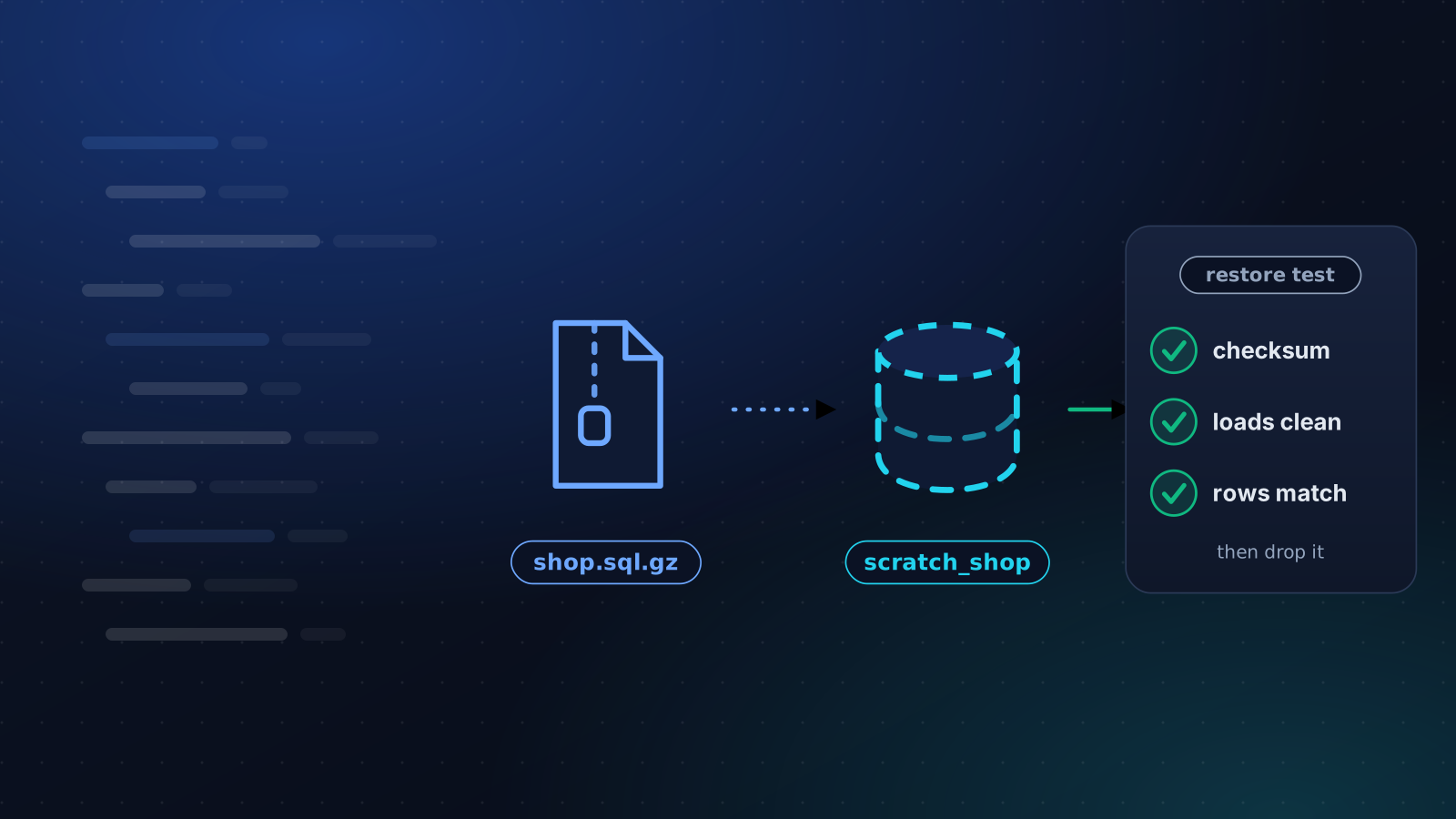
A backup you have never restored is a guess. Here is how to load a MySQL or PostgreSQL dump into a scratch database and prove that it is usable.
5 min read
Backups
Back Up MySQL to S3 Without Keys on the Server
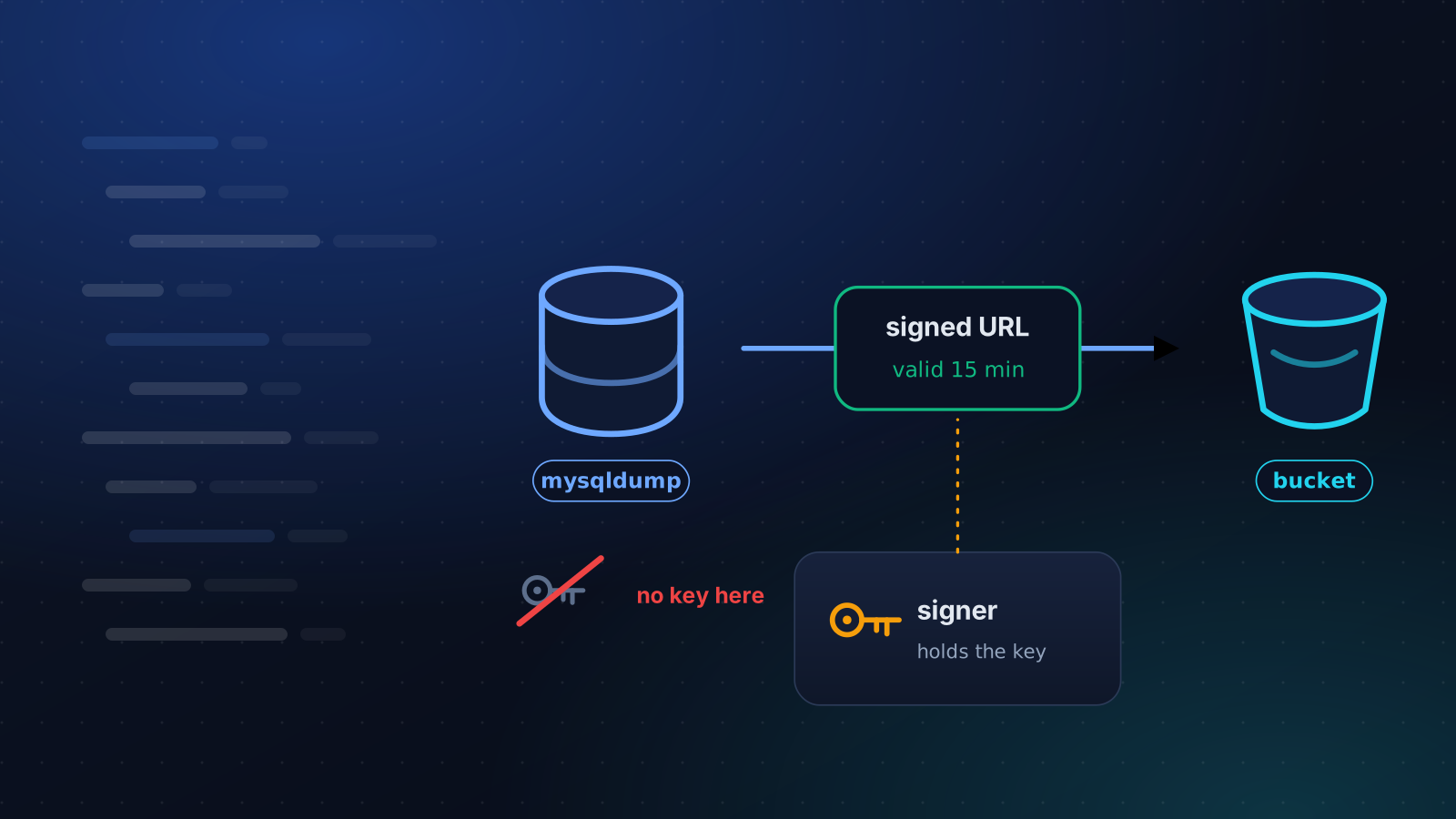
Most MySQL to S3 scripts leave a bucket key on the server. Here is a mysqldump pipeline that uploads with a short-lived presigned URL instead.
4 min read
Operations
Ubuntu 20.04, Debian 11 and Amazon Linux 2 Are End of Life
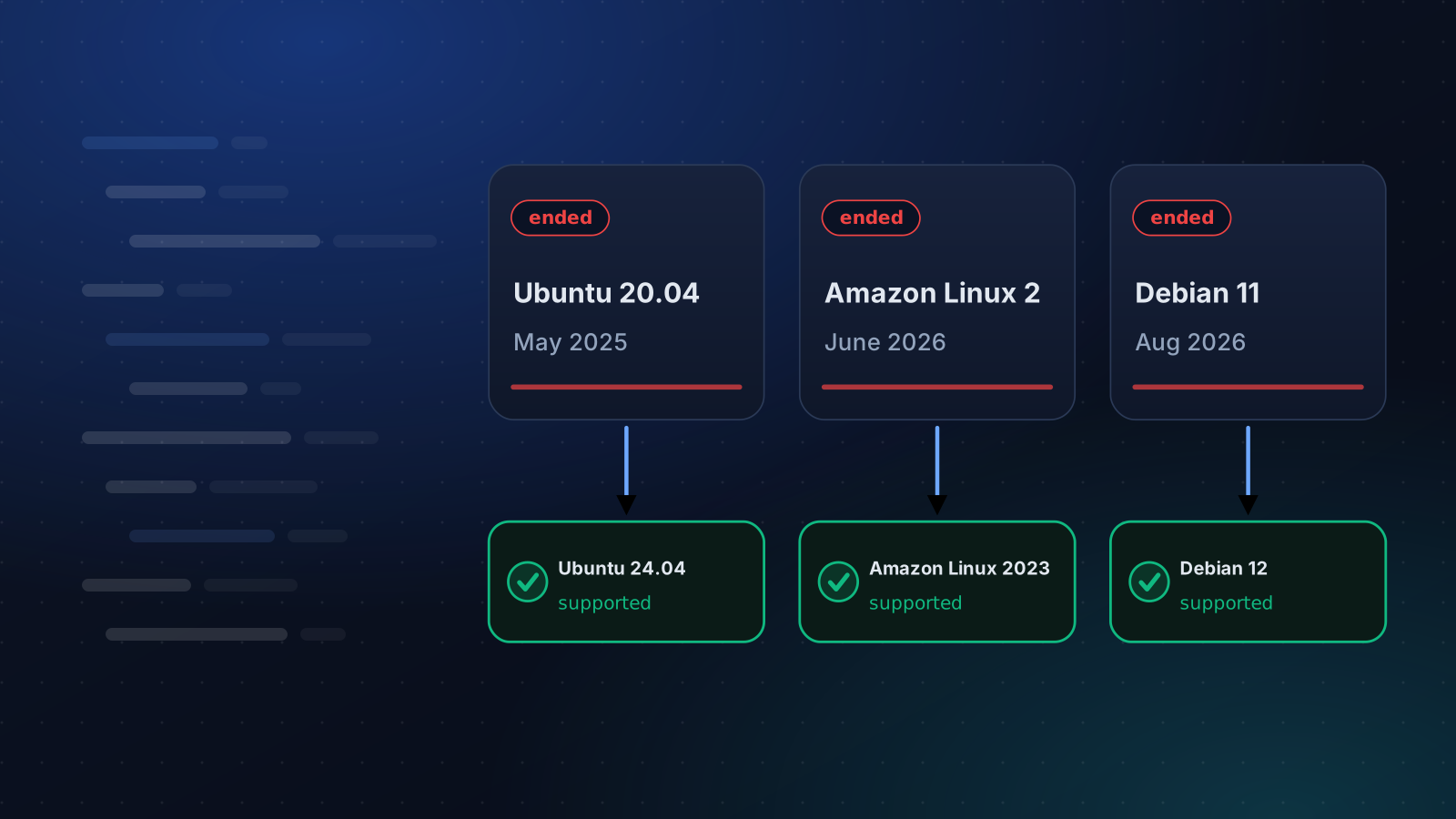
Ubuntu 20.04 lost standard support in May 2025, Amazon Linux 2 on 30 June 2026 and Debian 11 on 31 August 2026. What that means and how to move.
4 min read