

Operations
systemd Failed With Result: What Each Status Means
A failed systemd unit reports a result and an exit status. How to read exit-code, signal, timeout, start-limit-hit and 203/EXEC, each one reproduced on purpose.
By Techie Gain5 min read
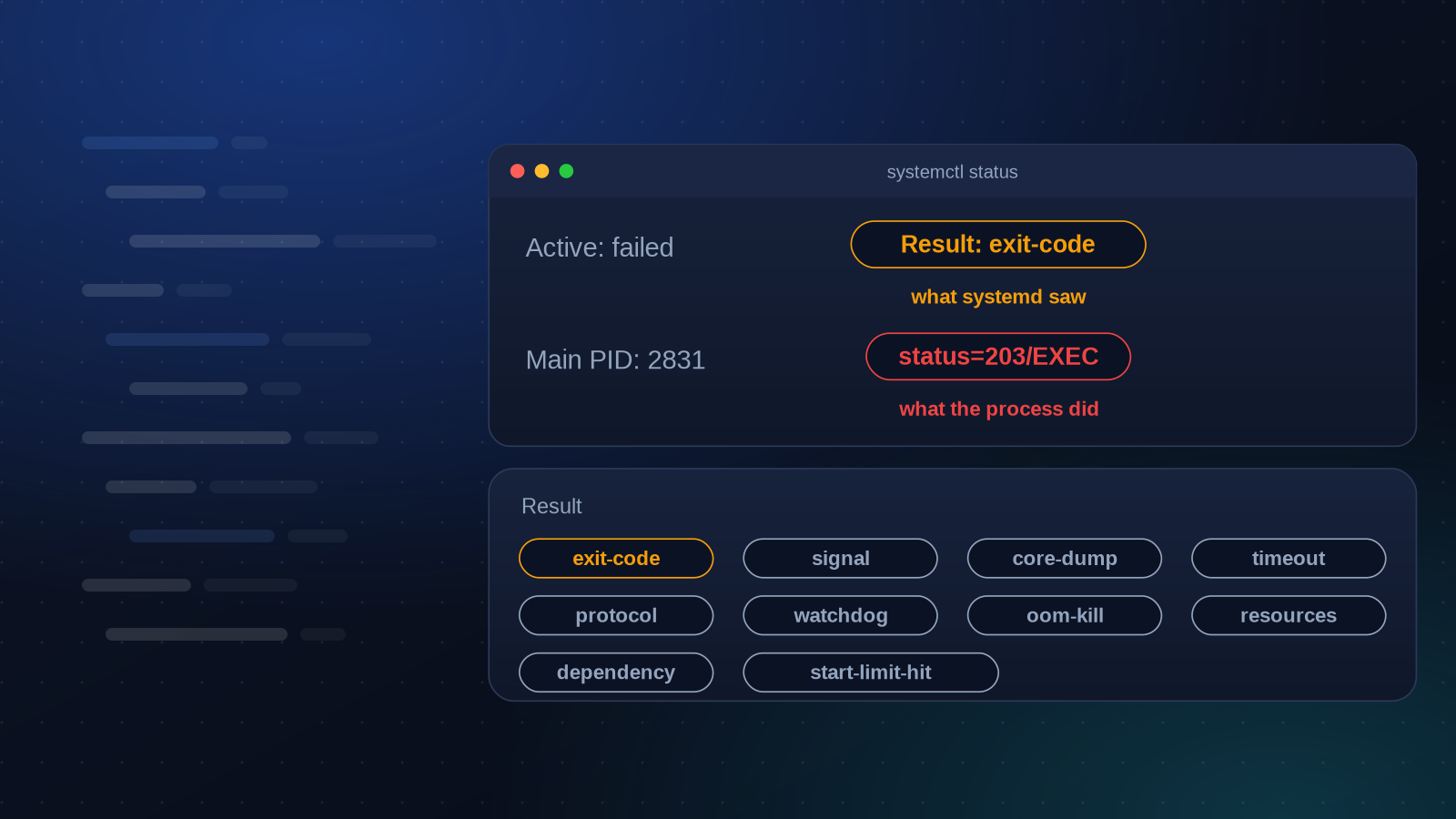
A failed unit ends with a line like Failed with result 'exit-code', and systemctl status shows a second fact beside it, such as status=203/EXEC. They answer different questions. The result is what systemd saw happen to the service. The status is what the process did, or which setup step failed before the process started.
We caused each failure on purpose in Debian 12 (systemd 252) and Ubuntu 24.04 (systemd 255) and recorded what systemd printed. The wording differs a little between the two, and every cause read the same.
Read the two lines first
Active: failed (Result: exit-code) since Thu 2026-11-19 17:52:08 UTC; 4min 20s ago
Main PID: 2831 (code=exited, status=203/EXEC)
Result is one of the values in the table below. status is an exit code. A number below 200 came from the program itself. A number from 200 to 243 came from systemd, which was still setting the service up and never reached the program. systemd-analyze exit-status 203 prints the name and class, EXEC and systemd, and run alone it prints the whole table. Then read the journal lines just above, because the reason is printed there:
bash
journalctl -u nginx.service -n 20 --no-pagerWhat each result means
| Result | We caused it with | systemd printed | Look at |
|---|---|---|---|
| exit-code | a program that exits 1 | status=1/FAILURE | The program's own log |
| signal | kill -KILL | code=killed, status=9/KILL | Who sent it |
| core-dump | kill -SEGV | code=dumped, status=11/SEGV | coredumpctl |
| timeout | Type=notify that never reports ready | start operation timed out. Terminating. | When it signals ready |
| protocol | Type=forking with a PID file that holds text | Failed to parse PID from file | Type= against the program |
| watchdog | WatchdogSec=2 and no pings | Watchdog timeout (limit 2s)! | Whether it hung |
| oom-kill | MemoryMax=64M and MemorySwapMax=0 | A process of this unit has been killed by the OOM killer. | Memory use |
| resources | EnvironmentFile= naming a missing file | Failed to load environment files: No such file or directory | The path, or a - before it |
| dependency | Requires= a unit that failed to start | Dependency failed for the dependent unit | The unit named above it |
| start-limit-hit | Restart=always on a program that exits 0 | Start request repeated too quickly. | Why it exits |
When systemctl start itself fails, it prints the same result in plain words: "because a timeout was exceeded" for timeout, "because the control process exited with error code" for a failed one-shot unit, "because the service did not take the steps required by its unit configuration" for protocol, "because of unavailable resources or another system error" for resources, and on Debian 12 "because start of the service was attempted too often" for start-limit-hit. The default wait for a start is 90 seconds (TimeoutStartUSec=1min 30s), so a service that never reports ready fails after a minute and a half.
A Type=notify service that exits before it reports ready also ends as protocol, with no log line of its own. A dependency failure is recorded on the job, not on the unit: the dependent unit showed inactive (dead), and only the journal said failed with result 'dependency'. What the OOM killer logs covers the memory row.
Statuses below 200 belong to the program
systemd-analyze exit-status names 0 and 1, the LSB codes 2 to 7 and the BSD codes 64 to 78, and prints no name for anything else, such as the 127 a shell returns for a command it cannot find. The names are conventions, because a program decides what its own 1 or 2 means. A shell of ours answered status=2/INVALIDARGUMENT after it was handed a bad argument.
A status from 200 to 243 means the program never ran
203/EXEC is the one people search for. systemd could not execute the file, and three different causes printed the same status: a path that does not exist, a file without the execute bit (Permission denied), and a script that exists but whose first line names a missing interpreter. That last one prints No such file or directory about a file that is plainly there, which sends people looking in the wrong place.
200/CHDIR meant a missing WorkingDirectory=. 217/USER meant a User= that does not exist, and Ubuntu 24.04 adds Failed to determine user credentials: No such process where Debian 12 says nothing more. 226/NAMESPACE meant a missing path under ProtectSystem=strict, and 243/CREDENTIALS a LoadCredential= that named a missing file. A restart cannot cure any of them, because the cause is in the unit file or in a file it names. systemctl cat shows the unit as systemd reads it.
Why start-limit-hit is often missing
A service that fails over and over should end with start-limit-hit. In both versions we tested, it kept exit-code instead: the journal said "Start request repeated too quickly" and then "Failed with result 'exit-code'". The result start-limit-hit appeared when the earlier runs had ended cleanly, as with Restart=always on a program that exits 0. Either way systemctl reset-failed clears the counter so the unit can start again. The limit and the restart delay have a post of their own.
What a restart can and cannot fix
Techie Gain's Auto-Fix restarts a stopped or failed web server, PHP-FPM, MariaDB, MySQL, PostgreSQL or Redis service, and its own iap- units, with systemctl restart, which also clears the failed state. It waits two seconds, checks that the unit is active, and otherwise reports it as not running with the last lines of systemctl status. We ran that script against a unit whose binary was missing, and it reported exactly that, with status=203/EXEC in the lines. Services outside the list are never touched, and it stops after three automatic fixes per monitor per day.
The order to check in
systemctl statusfor the result and the status.journalctl -ufor the lines just above the failure.- A status of 200 or more: the unit file and every path in it. Below 200: the program's own log.
timeoutorprotocol: compareType=with how the program really starts.- After the fix,
systemctl reset-failed, then start the unit.
These runs were in containers that share the host's kernel, so on a server your core dump and memory limit results depend on its kernel settings.
Keep reading
Operations
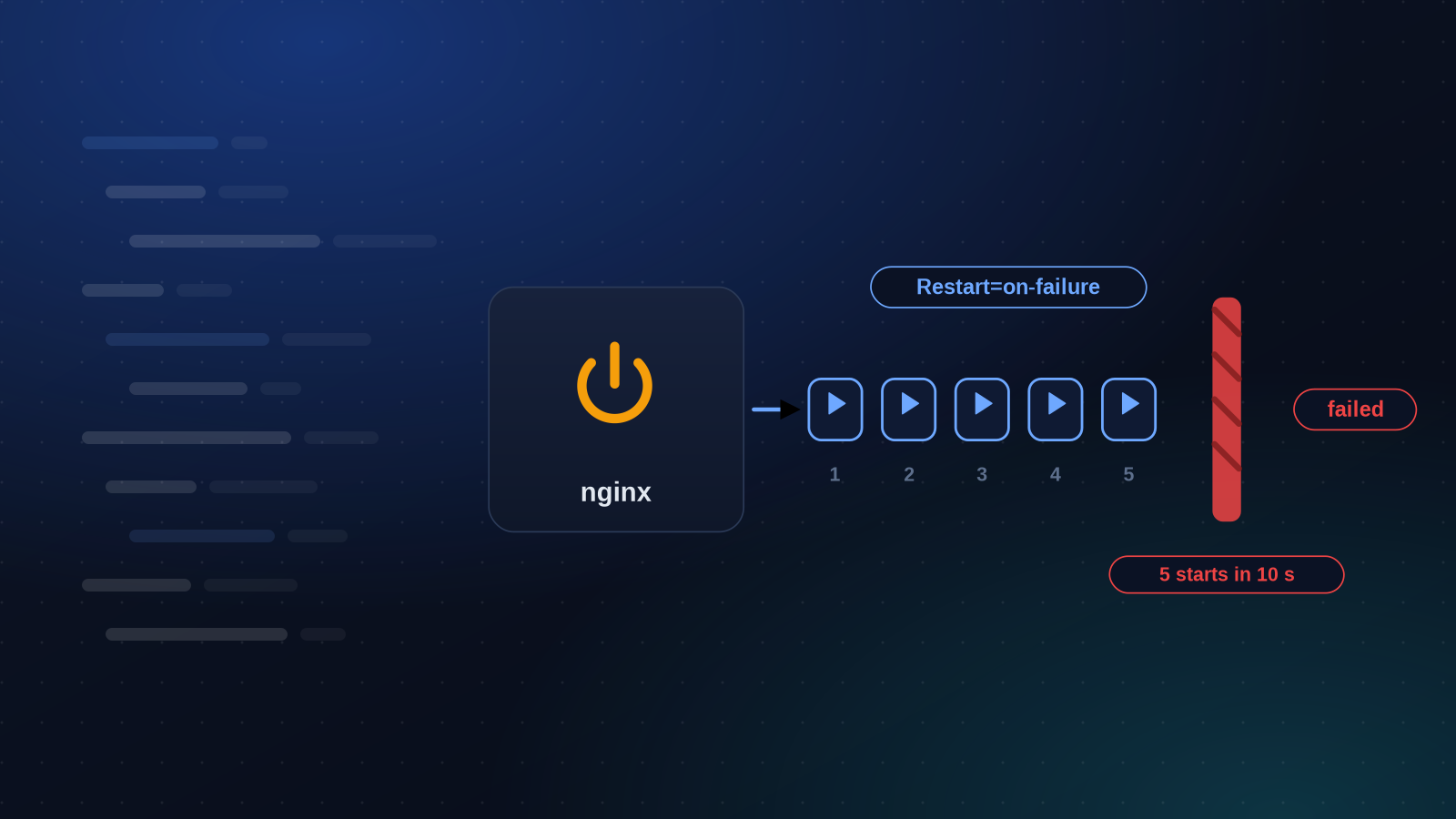
Restart a Crashed Service Automatically With systemd
Two lines make systemd restart a crashed service. Here is the start limit that quietly stops it, the failures it cannot see and how to hear about restarts.
4 min read
Monitoring
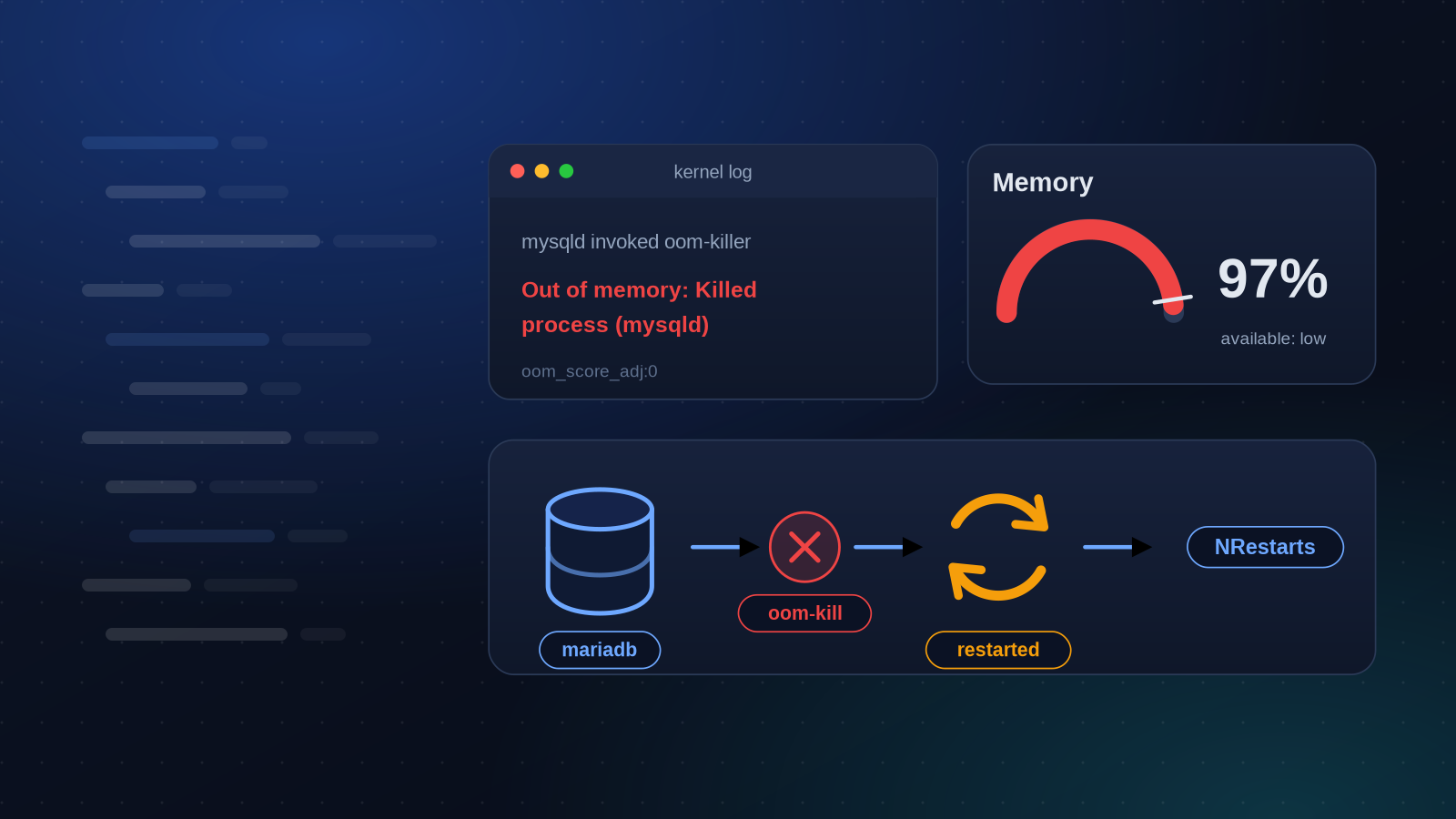
Linux OOM Killer: Find Out What It Killed
A service keeps dying and its own log says nothing. How to confirm the kernel's OOM killer did it, read its log line and stop it coming back on a small server.
5 min read
Monitoring
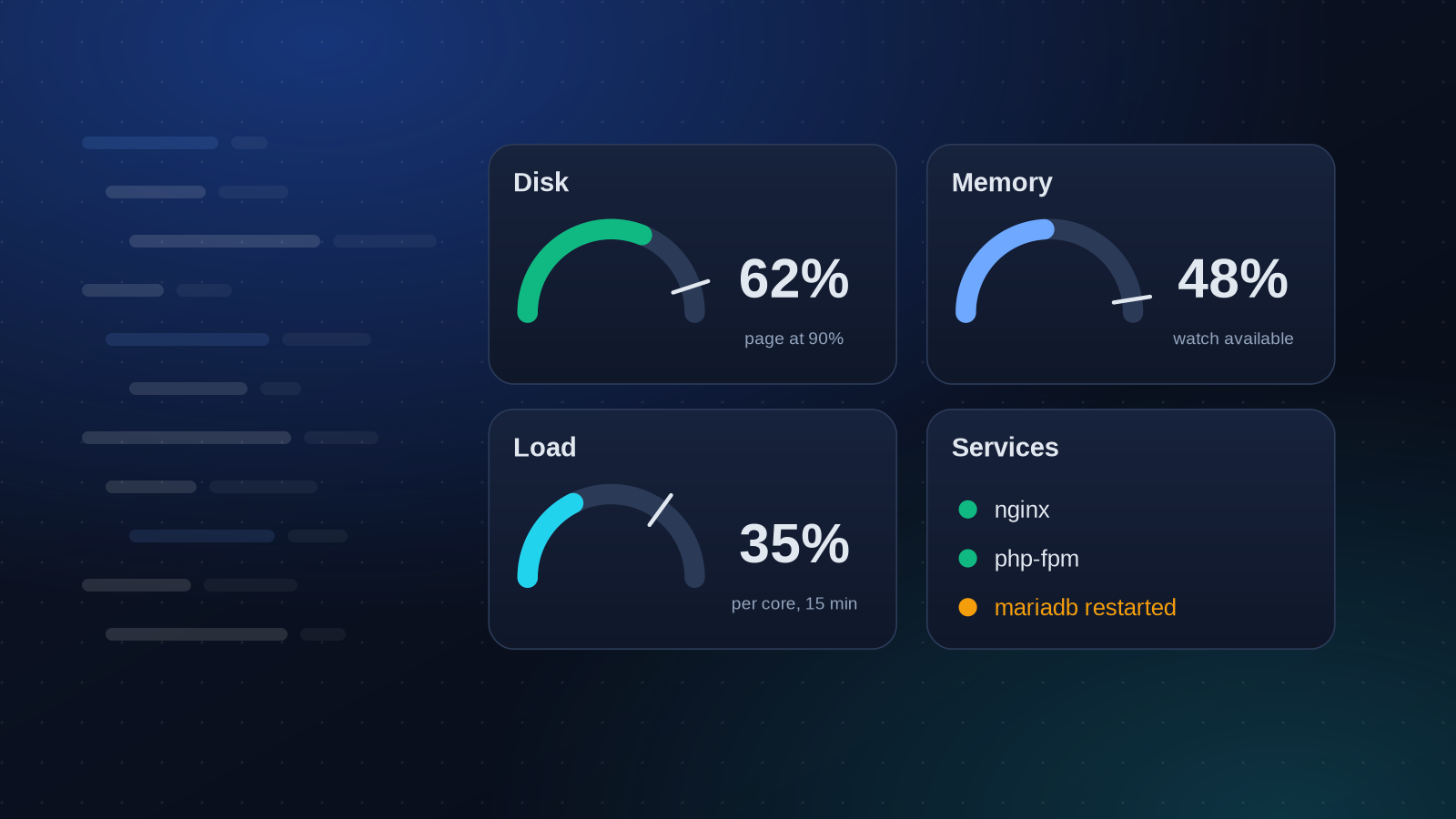
What to Monitor on a Linux Server
A short, opinionated list of what to watch on a Linux server, the thresholds worth alerting on, and what to leave out so alerts stay worth reading.
4 min read