

Automation
How to Patch Linux Servers Without Breaking Production
How often to patch, what to automate and what to stage, how to handle reboots, and a canary routine that a small team can keep up month after month.
By Techie Gain4 min read
The honest answer to "how often should I patch" is that security fixes should go on within days and everything else on a schedule you will actually keep. A weekly routine you follow beats a perfect one you abandon in March.
Two kinds of update
Security updates fix a known hole. Everything else, new versions, bug fixes, changed behaviour, is routine upkeep. They deserve different treatment because the risk differs. A security fix is small and urgent. A broad upgrade can change how things work.
Ubuntu Server already installs security updates on its own: the unattended-upgrades package is there by default and applies them daily. Debian has the same package available. On the RHEL family you ask for the equivalent with dnf upgrade --security.
What to automate and what to stage
Let security updates apply by themselves on servers that are easy to replace and fail loudly: web workers, build runners, stateless app servers. Stage them on servers where a surprise is expensive: databases, mail, anything that holds state.
The reason is practical, not theoretical. Package updates restart services, and a database restarting at 3 a.m. because a library changed is a decision you would rather make yourself.
A canary routine that survives
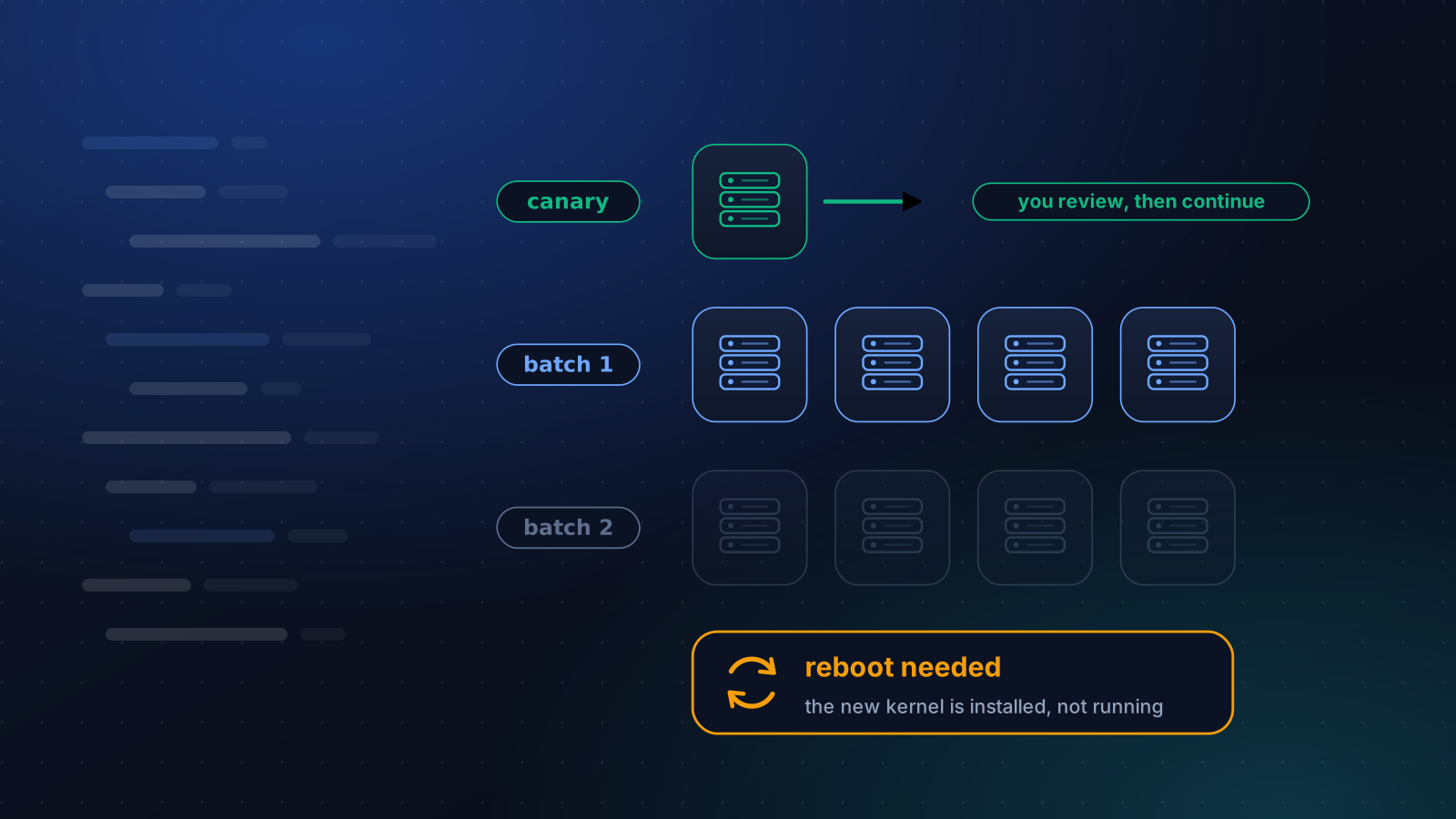
Pick one server that represents the rest. Update it first, give it a few hours, and look at three things: failed units (systemctl --failed), the application's own health page, and the error log. If those are clean, update the others in small batches, and stop at the first failure, not the last.
For three servers this is a checklist. For thirty it is the reason to use something that does it for you. Our rollouts follow the same shape: a preflight on every server, one canary that waits for your confirmation, then batches that stop when failures pass a limit you set.
See what is waiting before you touch it
Every package manager can tell you what an update would change without changing it:
bash
apt list --upgradable 2>/dev/null
sudo dnf updateinfo list security
Read the list once, as a person. Look for the database server, the web server and the kernel, because those are the packages that restart something you care about. Then decide whether this is the night for it. Updates are rarely dangerous. Updates that arrive during a sale, with nobody watching, are.
Reboots are the part that gets skipped
A new kernel does nothing until the machine restarts, and a new library does nothing for processes that loaded the old one. Updating without restarting is how servers end up "patched" and still vulnerable.
Ask the machine whether it needs one:
bash
[ -f /var/run/reboot-required ] && cat /var/run/reboot-required.pkgs
sudo needs-restarting -r
The first works on Ubuntu and Debian. The second belongs to the RHEL family, where an exit code of 1 means a reboot is needed. On Debian and Ubuntu, needrestart goes further and lists the services still running old code.
Pick a monthly window for reboots, do them one server at a time for anything redundant, and write the window down. None of it is hard. It simply never becomes anyone's job unless it is scheduled.
What goes wrong
- A held package.
apt-mark holdpins a version, which is how Kubernetes tooling stays put. dpkg reports it ashi, notii, and a script that tests for an exactiireads every held package as missing. We wrote that bug ourselves and found it on a real Debian 12 server, where it reinstalled the same packages on every run. - Third-party repositories. Docker, nginx.org and the database vendors publish their own. Update them deliberately, because a major version can arrive as an ordinary upgrade.
- Phased updates. Ubuntu releases some updates to a fraction of machines at a time. Packages that are "kept back" are normal, not a fault.
- A full disk. An upgrade that runs out of space half way is worse than none. Check free space first.
- Prompts. An upgrade that waits for an answer about a config file hangs a non-interactive run. Set
DEBIAN_FRONTEND=noninteractive, and decide in advance whether to keep your own files.
Have a way back
Take a snapshot before a kernel or database update, since that is the one time a whole-disk undo is exactly the right tool. And remember that Debian and Ubuntu keep the previous kernel installed, so a machine that boots badly on the new one can usually be started on the old one from the boot menu or the provider's console. Do not clean up old kernels on the day you install a new one.
A monthly shape
Security updates daily, automatic where that is safe. A staged full upgrade once a month, canary first. A reboot window in the same week. And one dry run before each, which lists what would change without changing it. That last step takes a minute and has saved more evenings than any other.
The Update Packages playbook does the staged part. It installs all updates or security fixes only, shows a dry run first, never removes a package to make an upgrade fit, and says plainly when a reboot is needed. It never reboots the server itself. If some of your servers are on a release that no longer gets fixes, start here.
Keep reading
Operations
Ubuntu 20.04, Debian 11 and Amazon Linux 2 Are End of Life
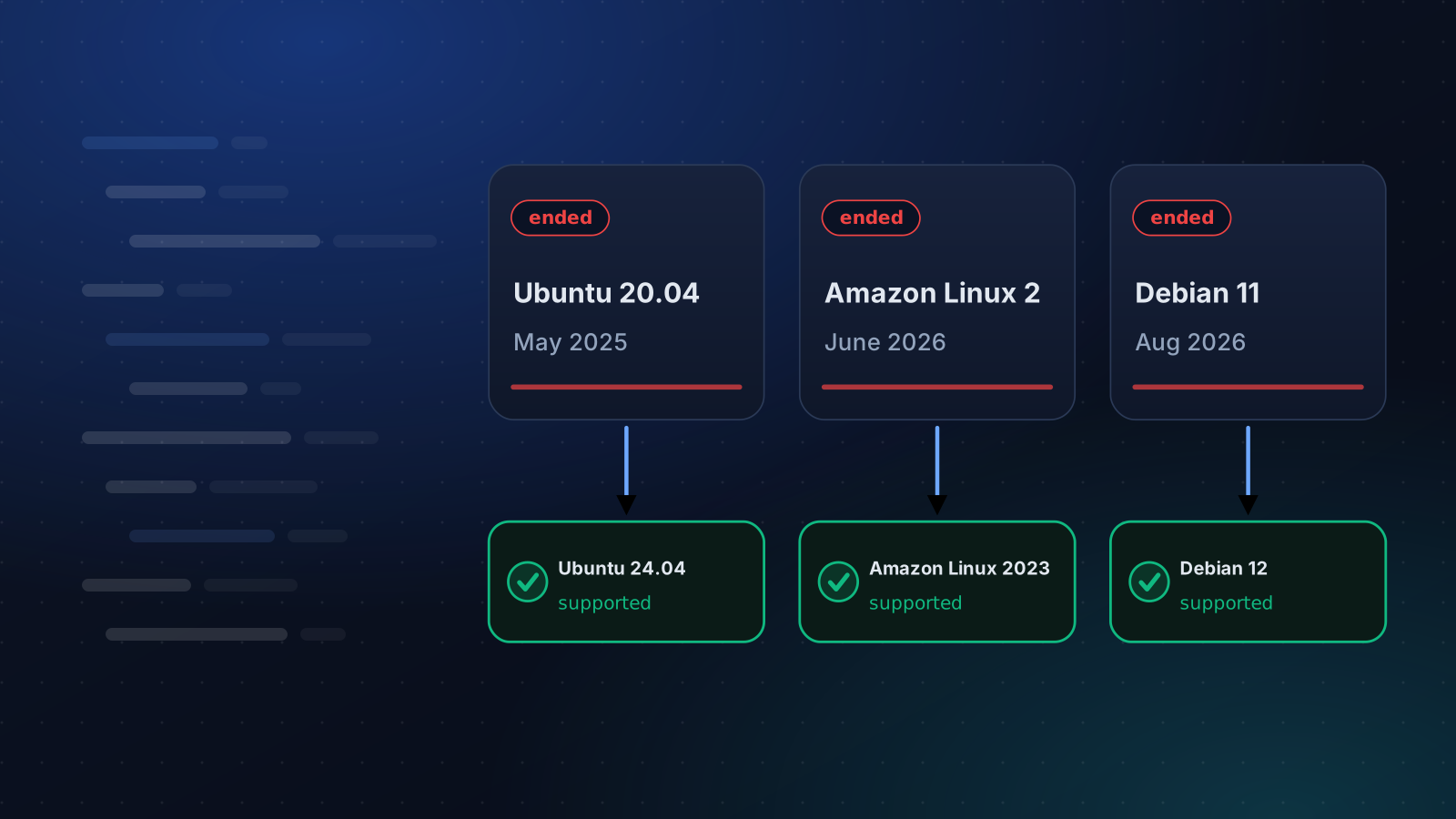
Ubuntu 20.04 lost standard support in May 2025, Amazon Linux 2 on 30 June 2026 and Debian 11 on 31 August 2026. What that means and how to move.
4 min read
Automation
Ansible Alternatives for Small Teams
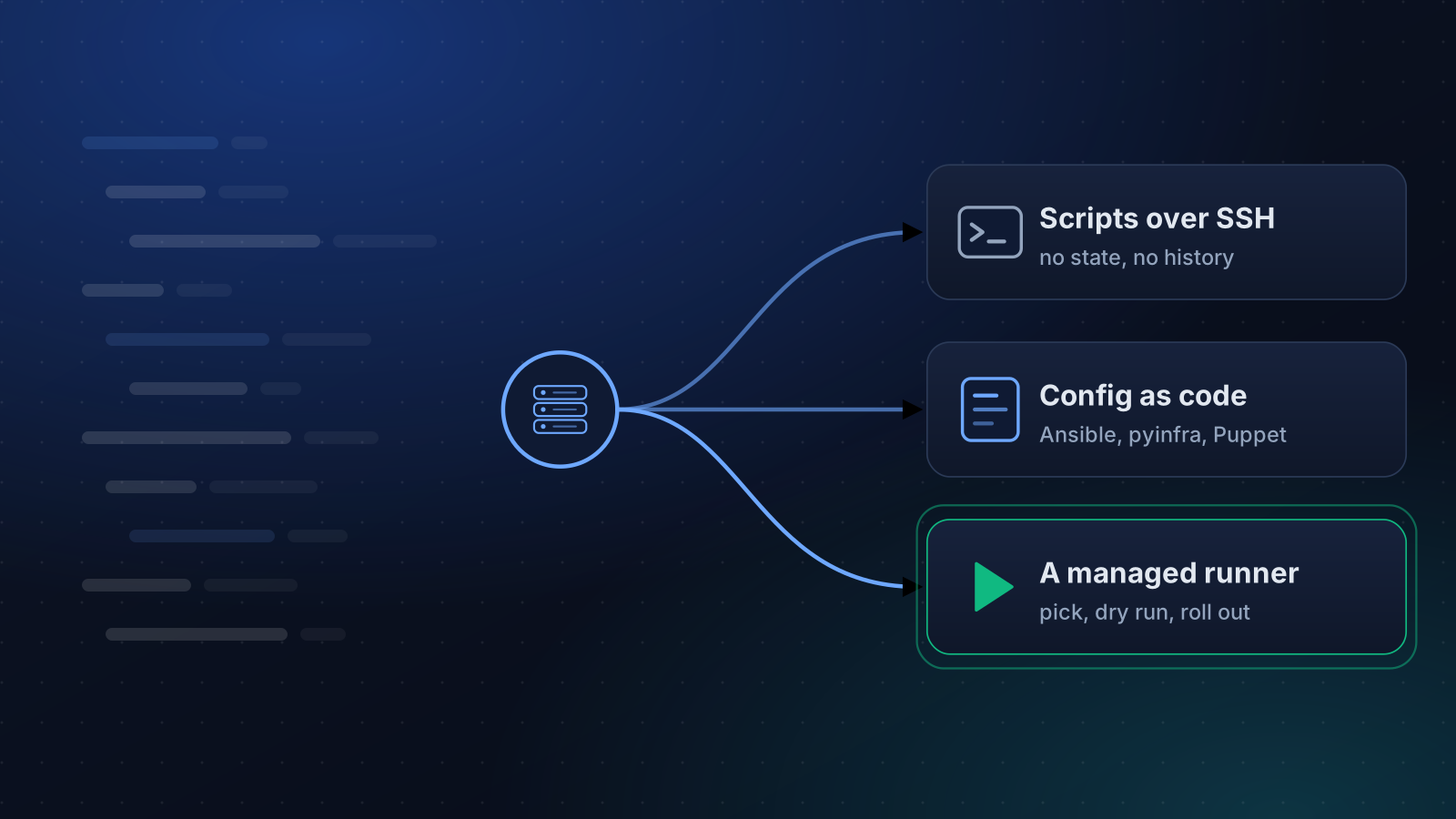
Ansible is fine until the upkeep outweighs the servers. A fair look at pyinfra, Fabric, salt-ssh, Puppet and a managed runner, and when plain SSH is enough.
4 min read
Security
Harden SSH Without Locking Yourself Out
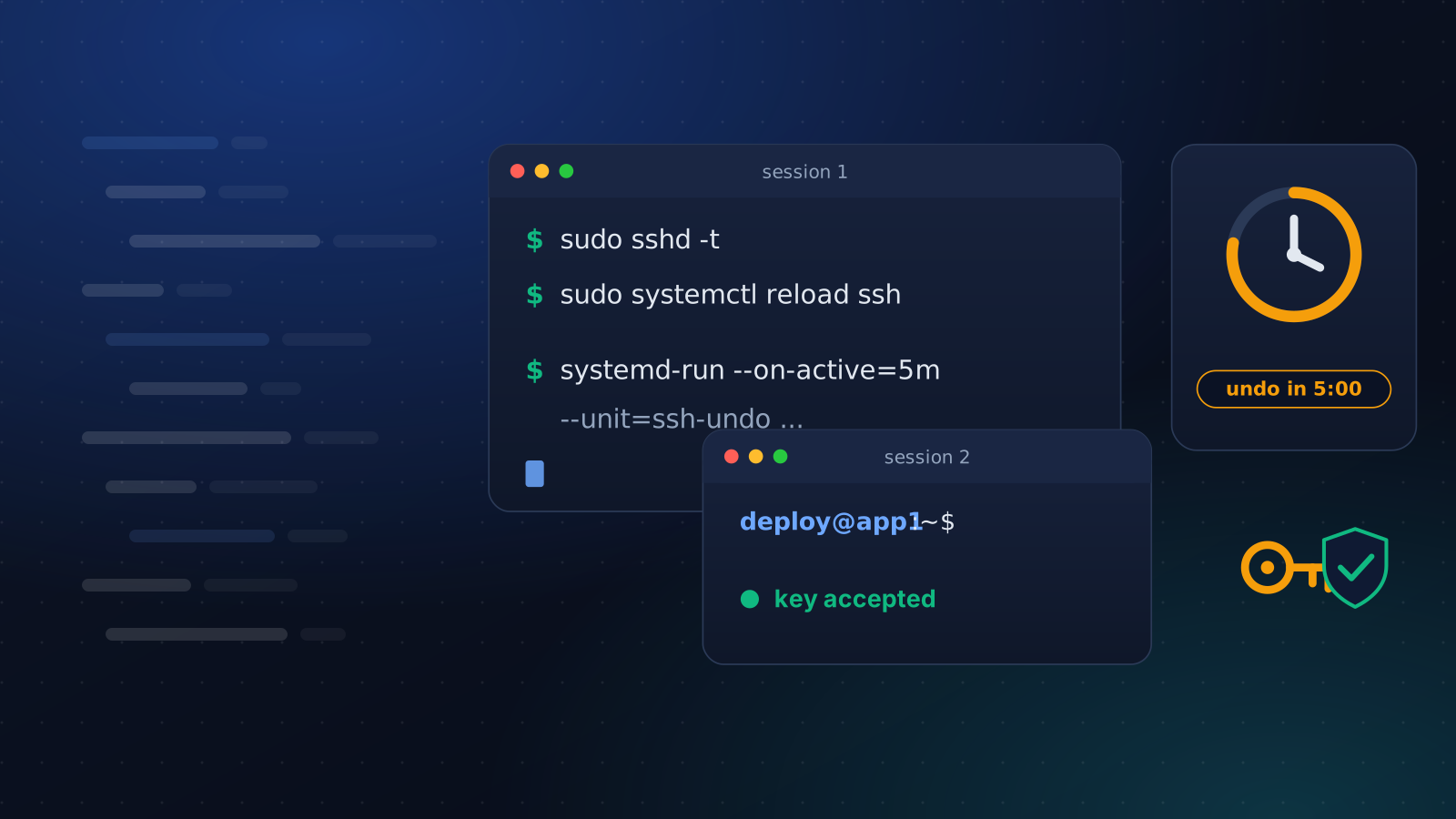
Turning off password logins takes one line and can cost you the server. The order that keeps a way in: a drop-in file, a second session and an undo timer.
4 min read