

Security
Harden SSH Without Locking Yourself Out
Turning off password logins takes one line and can cost you the server. The order that keeps a way in: a drop-in file, a second session and an undo timer.
By Techie Gain4 min read
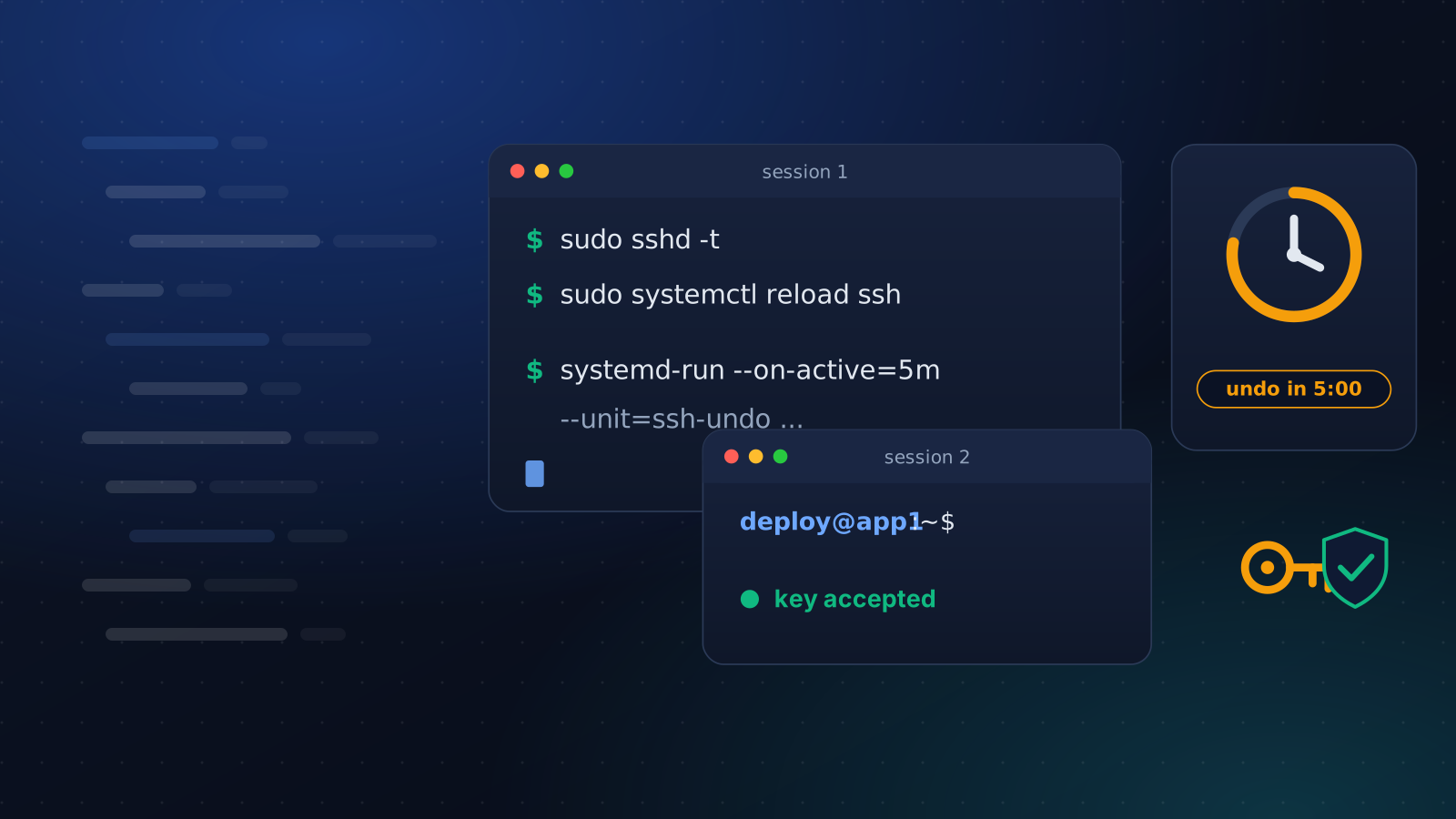
There are two ways to get SSH hardening wrong. The loud one is turning off password logins before your key works, closing the terminal and finding out. The quiet one is believing you turned them off when you did not.
Both are avoidable with the same short routine, and none of it needs anything beyond OpenSSH and systemd.
Prove the key works before you touch anything
If you do not have a key yet, make a modern one with ssh-keygen -t ed25519, give it a passphrase, and install the public half with ssh-copy-id. Then open a second terminal and ask the server to use the key and nothing else:
bash
ssh -o PreferredAuthentications=publickey -o PasswordAuthentication=no deploy@203.0.113.10If that gets you a shell, the key is good. If it asks for a password, it is not, and a plain ssh would have fallen back to the password and hidden that from you. Leave this session open for the rest of the job.
Know which file wins
OpenSSH uses the first value it finds for each setting. On Debian 12, Ubuntu 22.04 and later, and RHEL 9, the main sshd_config includes /etc/ssh/sshd_config.d/*.conf near the top, which means those files are read first, in alphabetical order, and the lines below the include lose to them.
Cloud images usually ship 50-cloud-init.conf in that directory with PasswordAuthentication yes in it. Add PasswordAuthentication no to the main file and nothing changes. Put your settings in a file that sorts before it instead:
ini
# /etc/ssh/sshd_config.d/00-hardening.conf
PasswordAuthentication no
KbdInteractiveAuthentication no
PermitRootLogin prohibit-password
Then ask sshd what it will actually use, rather than trusting the files:
bash
sudo sshd -T | grep -E 'passwordauthentication|permitrootlogin|kbdinteractive'sshd -T prints the effective configuration in lower case. It is the one command here that cannot be fooled by file order.
Test, then reload
bash
sudo sshd -t && sudo systemctl reload sshsshd -t prints nothing when the configuration is valid and names the line when it is not, so the reload only happens on a good file. The unit is ssh on Debian and Ubuntu and sshd on the RHEL family. Reloading leaves existing sessions alone, but keep the spare one anyway.
Give yourself an automatic undo
Before you reload, schedule the old behaviour to come back. A transient systemd timer does it in one command:
bash
sudo systemd-run --on-active=5m --unit=ssh-undo \
  /bin/sh -c 'rm -f /etc/ssh/sshd_config.d/00-hardening.conf && systemctl reload ssh'
Now reload, and test a fresh login from a third terminal. If it works, cancel the undo:
bash
sudo systemctl stop ssh-undo.timerIf you lost the connection instead, you do nothing. In five minutes the server removes your file and reloads sshd, and you are back in. This is a hand-made version of what our playbook does, and we built the playbook's version after thinking about the run that is cut off halfway.
Settings worth the trouble
Past the password question, three settings earn their place. PermitRootLogin prohibit-password lets root in with a key and never with a password, which keeps automation working. MaxAuthTries 4 and LoginGraceTime 60 shorten how long a guessing client gets. And X11Forwarding no removes a feature almost no server uses.
Moving SSH to another port is not on that list. It cuts the noise in your logs, which is a fine reason, and it stops nobody who scans ports. Do it for the logs if you like, and update the firewall before the restart, not after.
What else locks people out
- Firewall before the allow rule.
ufw enablewith no rule for SSH ends the session. Runufw allow OpenSSHfirst. - AllowUsers with a typo. One wrong character and nobody is allowed.
- Root login off, and root is your only account. Create the sudo user and test it before you close the door behind it.
- Fail2Ban banning you. A few mistyped passwords from your own address can ban it. Put your office or VPN address in
ignoreip. - A cloud firewall or security group. It sits outside the server, so nothing on the server can undo it.
If you are already locked out
Use the provider's web console, which does not go through SSH, and log in locally. Put the old behaviour back in a file named 00-recovery.conf with PasswordAuthentication yes, run sshd -t, reload, and get in with your key. Then find out why the key failed.
The usual reasons are loose permissions on ~/.ssh (it should be 700) and authorized_keys (600), a home directory that other users can write to, or a key installed for a different account. sshd's own log, journalctl -u ssh, normally names which.
Every provider has a console or a rescue mode. Find yours and log in once before the day you need it. Half of the lockout stories end with somebody discovering it exists.
Doing it across more than one server
The routine above is fine for one machine and tedious for ten, which is where mistakes creep in. Our playbook applies the same ideas: it writes 00-iap-hardening.conf, checks it with sshd -t, confirms the platform can still sign in the way it did, and arms the five minute undo on the server before the first change. It also refuses to turn off password logins while the platform itself signs in with a password, because that would lock out the one thing that could fix it. The Harden a Server guide shows the options, and the security hardening article lists what it changes. If patching is the next job you keep putting off, start with that routine.
Keep reading
Automation
How to Patch Linux Servers Without Breaking Production
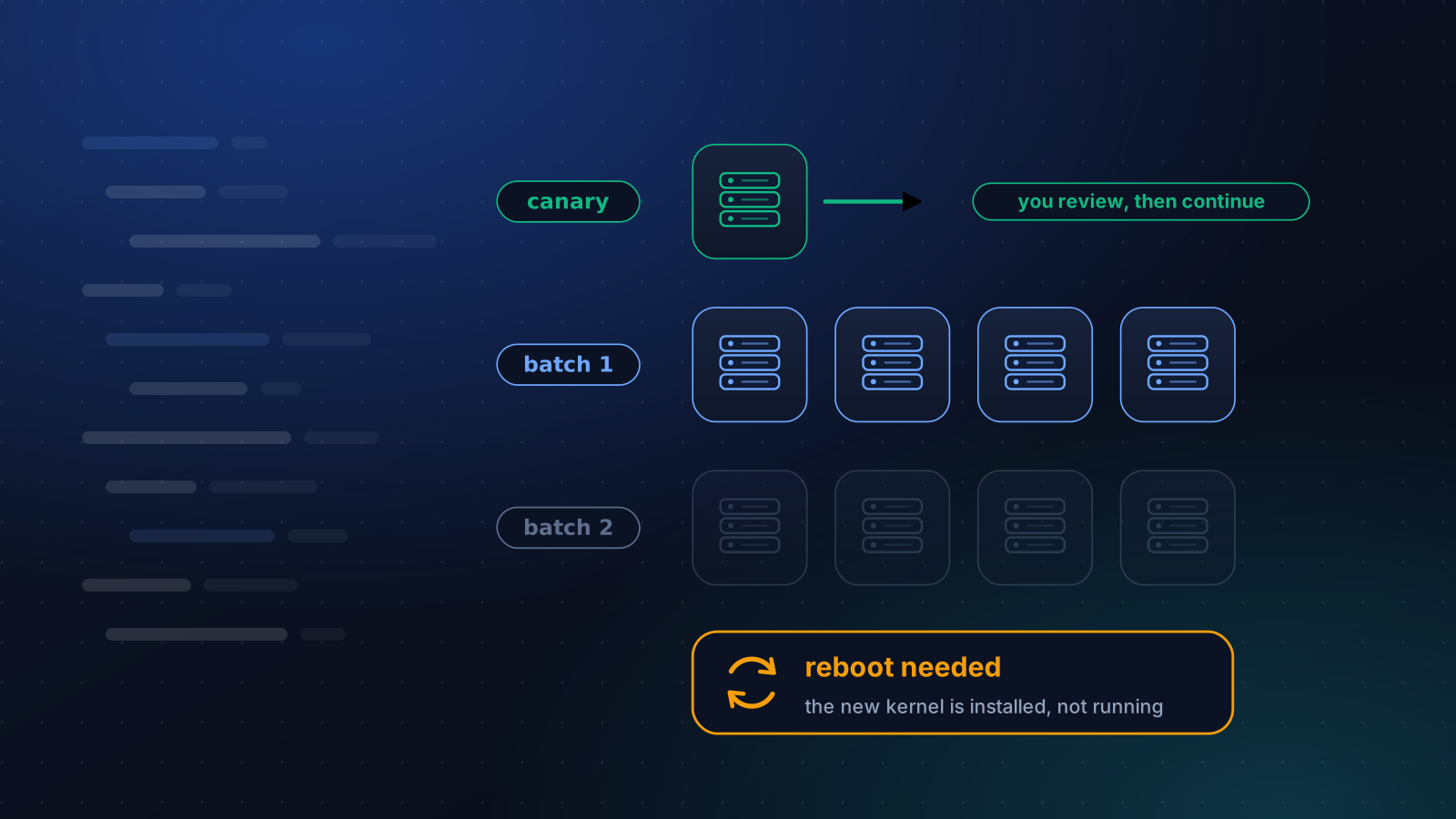
How often to patch, what to automate and what to stage, how to handle reboots, and a canary routine that a small team can keep up month after month.
4 min read
Operations
Ubuntu 20.04, Debian 11 and Amazon Linux 2 Are End of Life
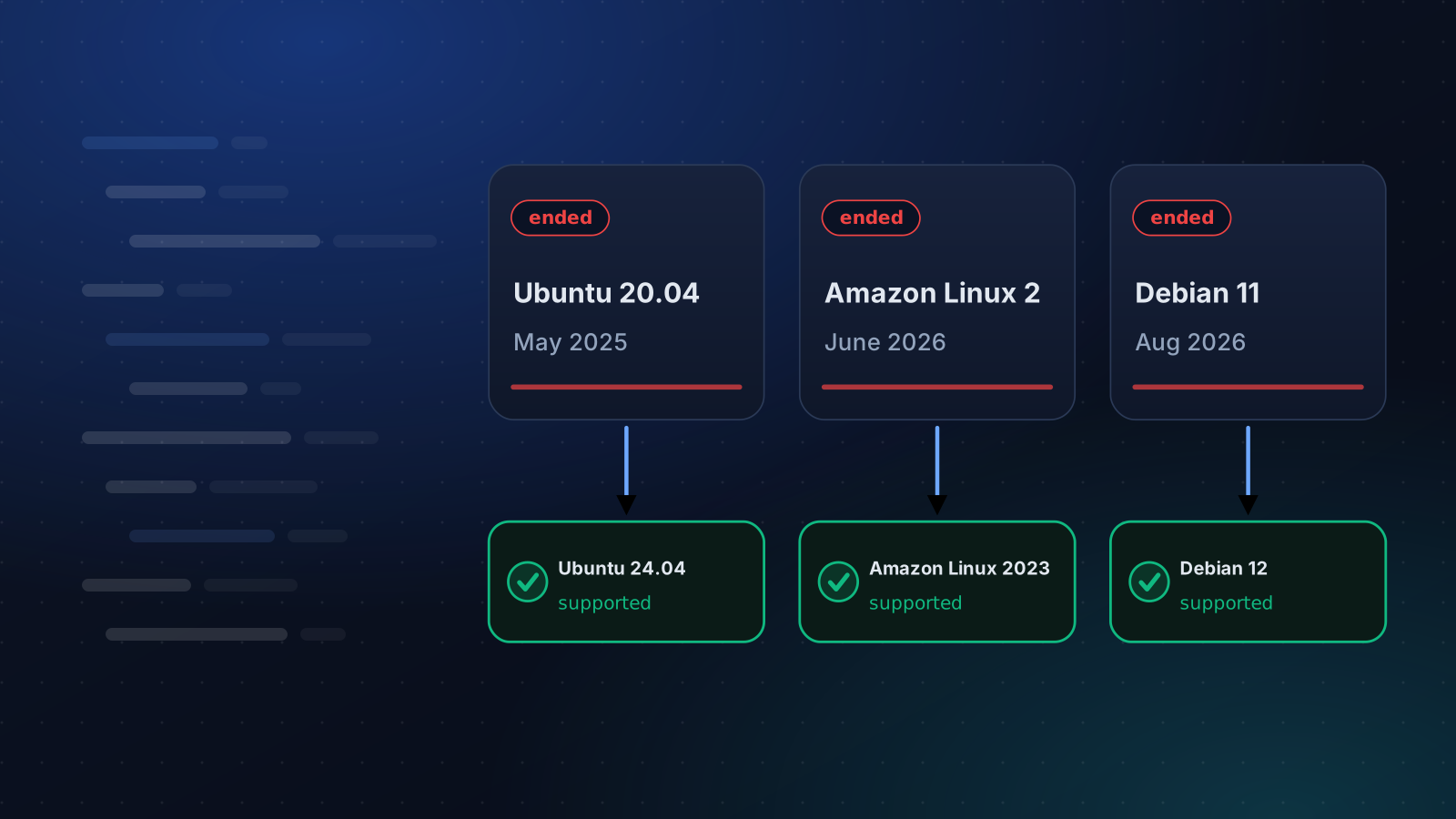
Ubuntu 20.04 lost standard support in May 2025, Amazon Linux 2 on 30 June 2026 and Debian 11 on 31 August 2026. What that means and how to move.
4 min read

Automation
Ansible Alternatives for Small Teams
Ansible is fine until the upkeep outweighs the servers. A fair look at pyinfra, Fabric, salt-ssh, Puppet and a managed runner, and when plain SSH is enough.
4 min read