

Operations
Linux Disk Full: Find What Is Using the Space
df says full, df says free, or the numbers disagree. A calm order of checks for a full Linux disk: inodes, deleted files, journald, Docker and logs.
By Techie Gain4 min read
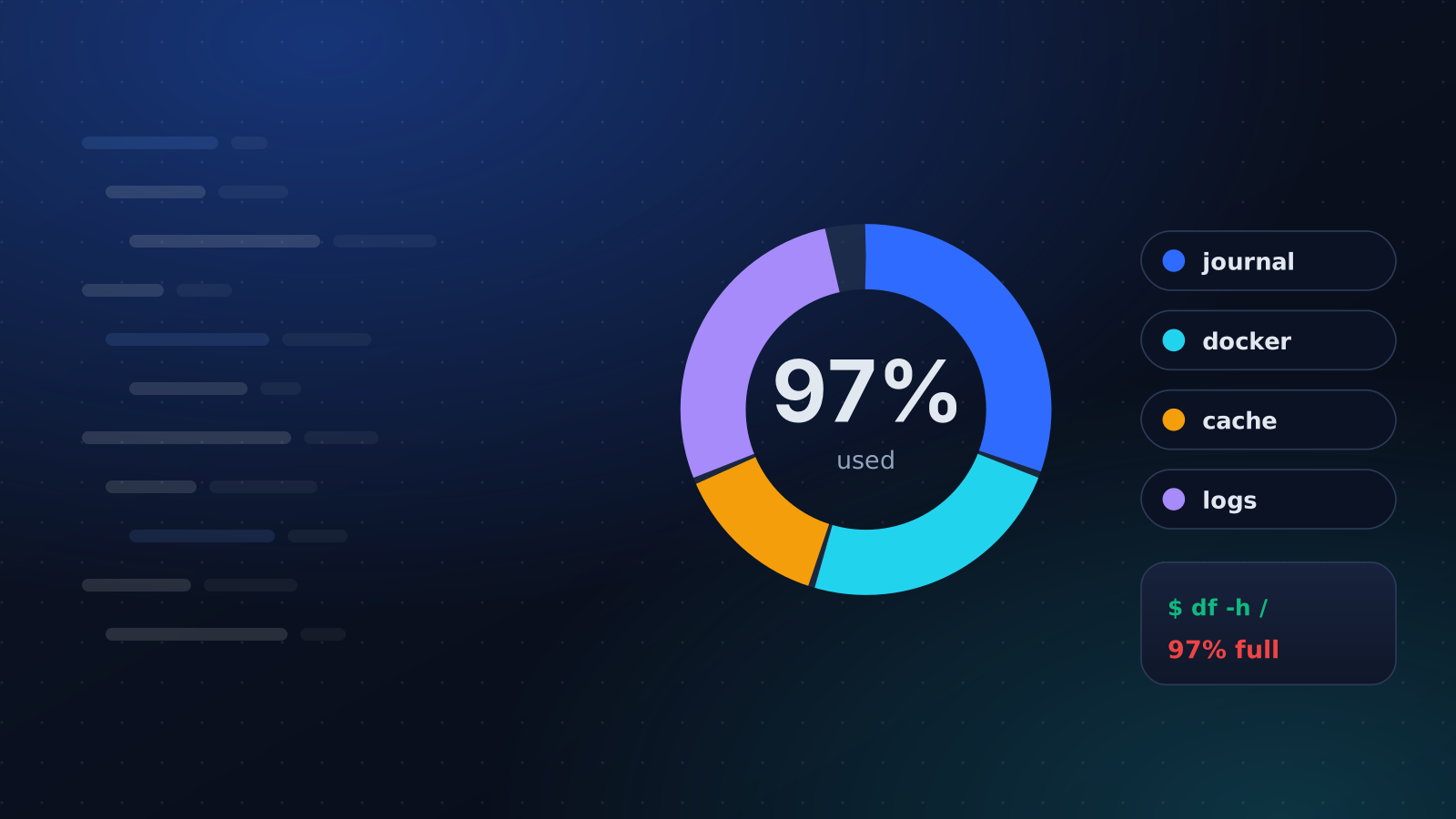
A full disk fails strangely. Logins hang, the database refuses writes, nginx returns 502 because it cannot write a temporary file, and the package manager dies half way through an upgrade. The first move is always the same two commands:
bash
df -h
df -i
A disk can be full in two different ways, bytes and inodes, and the fix for one does nothing for the other.
Bytes or inodes
If df -h shows 100% on a filesystem, you are out of bytes. If df -i shows 100% in the IUse% column while bytes are free, you are out of inodes. The filesystem has run out of file entries, usually because millions of tiny files piled up in a cache, a session directory or a mail queue. Everything that tries to create a file then fails with "No space left on device", while df -h insists there is room.
For inodes, count by directory instead of by size:
bash
sudo find /var -xdev -type f | cut -d/ -f1-4 | sort | uniq -c | sort -rn | headWhere did the bytes go
bash
sudo du -xh --max-depth=1 / 2>/dev/null | sort -h | tail -n 12The -x keeps du on one filesystem, which matters on a server where /var or a data disk is mounted separately. Take the biggest line, run it again one level down, and repeat until the name explains itself. ncdu does the same interactively if you can install it.
The space du cannot see
If df says the disk is full and du accounts for far less, something is holding deleted files open. A process keeps a file's blocks allocated until it closes the file, even after the file is unlinked, and that is exactly what happens when a log is deleted while its service is still writing to it.
bash
sudo lsof +L1lists open files with no name left on disk. Restart the process that holds the big one and the space comes back. There are two other reasons for a gap. One is a directory that was filled before a disk was mounted over it. The other is the five per cent that ext4 reserves for root by default, which is why df can show 100% to everybody else while root can still write.
The usual suspects, in the order we check them
- The journal.
journalctl --disk-usageshows it. With no limit set it can take gigabytes. Trim it withsudo journalctl --rotatefollowed bysudo journalctl --vacuum-size=200M, and setSystemMaxUse=500Min/etc/systemd/journald.confso it stays trimmed. - Package caches.
sudo apt-get cleanon Debian and Ubuntu,sudo dnf clean allon the RHEL family. - Old kernels and unused packages.
sudo apt-get autoremove --purge. - Docker.
docker system dfshows what images, build cache and volumes cost.docker image pruneremoves dangling images. Be slow with volumes, because they hold data. - Logs nobody rotates. Usually an application's own log directory. Fix its logrotate rule, not the single file.
- Backups kept on the same disk. The one thing that must not simply be deleted. Move them off the server, because a backup on the disk it protects was never much of a backup.
Containers have their own appetite
Docker's default logging driver keeps each container's output in one JSON file that grows without a limit. A chatty container can fill a disk on its own, and docker system df will not show it, because that file is neither an image nor a volume. Look in /var/lib/docker/containers, and cap the logs for every container in /etc/docker/daemon.json:
json
{ "log-driver": "json-file", "log-opts": { "max-size": "50m", "max-file": "3" } }Restart Docker after changing it, and recreate the containers, because the setting only applies to containers created afterwards.
What not to do
Do not rm -rf the journal directory. It can corrupt the active journal and take journald down with it, so use journalctl --vacuum-* instead. Do not delete a database's files to "make room". And do not delete a large log that a running process has open without restarting that process, or you free nothing and lose the ability to find the file.
On a disk so full that nothing will write, journalctl --vacuum-size and apt-get clean still work, because they remove rather than create. Start there to get some breathing room.
Or make it bigger
On most clouds you can grow the volume while the server runs, then grow the partition and the filesystem to match: growpart and resize2fs on ext4, adjusted for your device names. It buys time. It is not a fix for something that grows without limit.
Stopping the next one
Alert at 80% as a warning and at 90% as a page, and watch the growth rate as well as the level: a disk that fills in three days needs attention at 60%. Cap the journal, make sure every log has a rotation rule, and keep Docker's data on its own volume so a runaway build cannot take the system disk with it.
For the boring causes, Auto-Fix already does the first two steps when a disk check fails. It clears package caches and trims the journal to one week, and it leaves your files and databases alone. The Clean Disk Space playbook does the same on demand and then lists the largest directories, which is the part that needs a human. For the thresholds themselves, see what to monitor on a Linux server.
Keep reading
Monitoring
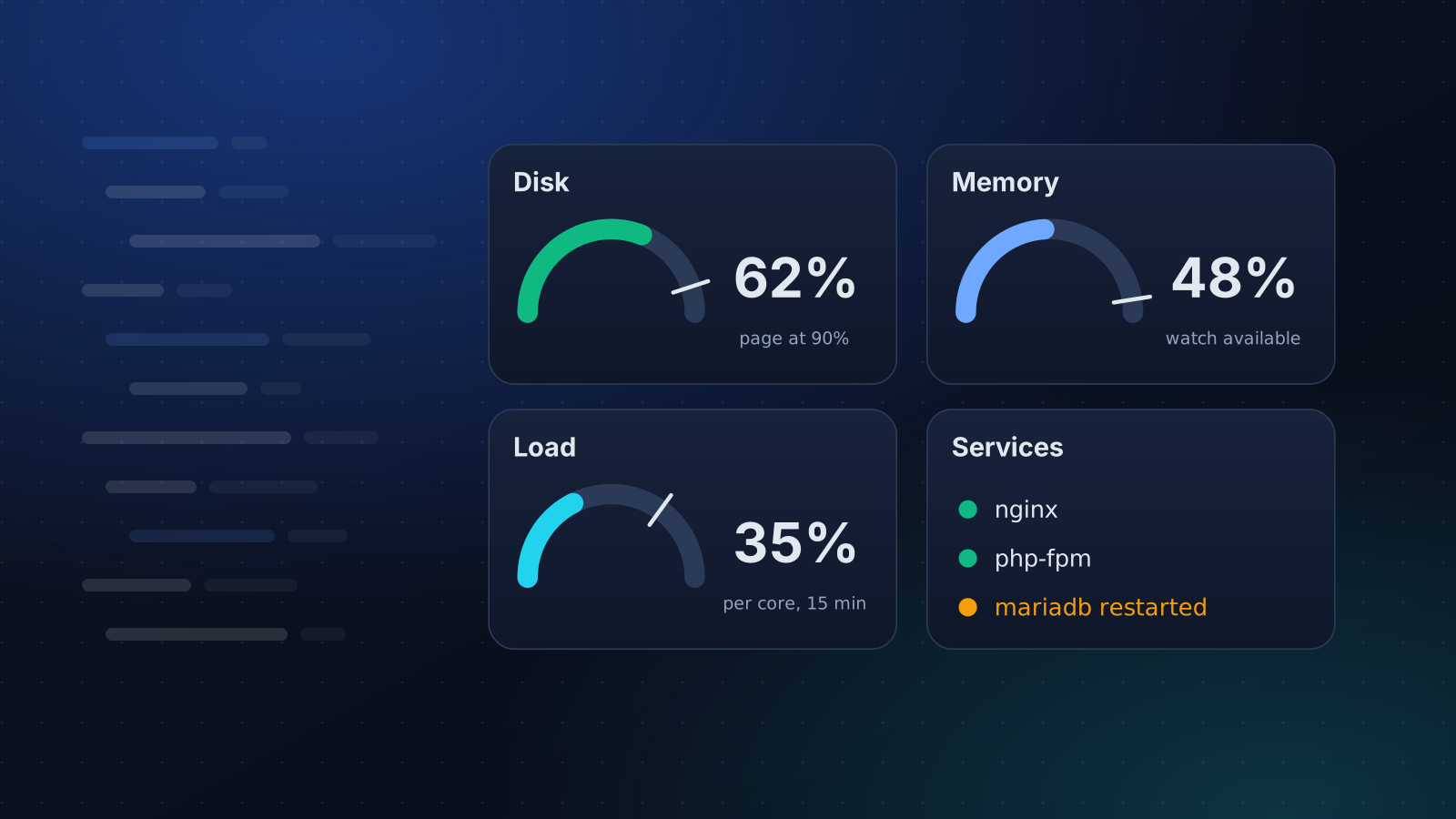
What to Monitor on a Linux Server
A short, opinionated list of what to watch on a Linux server, the thresholds worth alerting on, and what to leave out so alerts stay worth reading.
4 min read
Automation
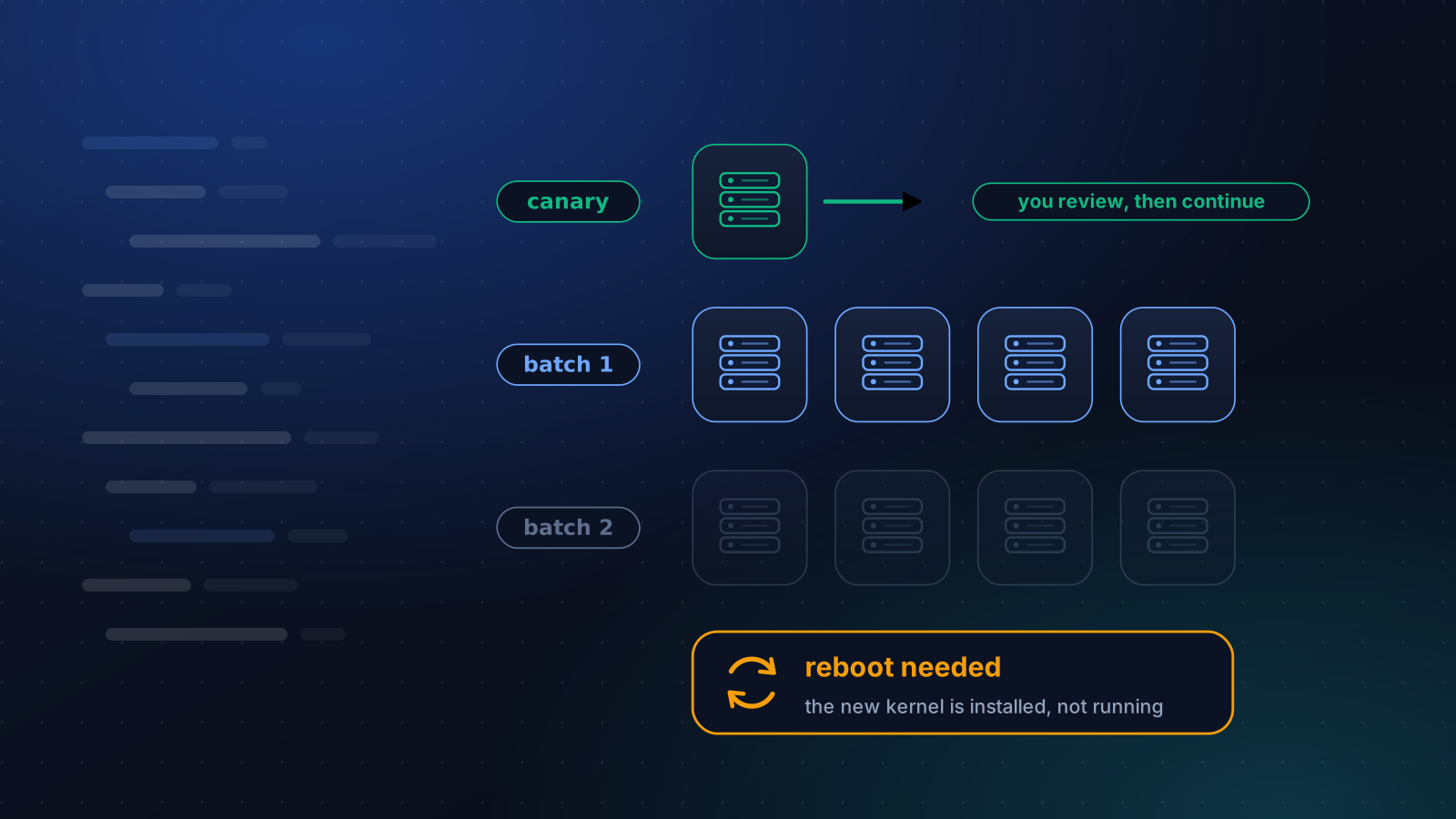
How to Patch Linux Servers Without Breaking Production
How often to patch, what to automate and what to stage, how to handle reboots, and a canary routine that a small team can keep up month after month.
4 min read
Monitoring
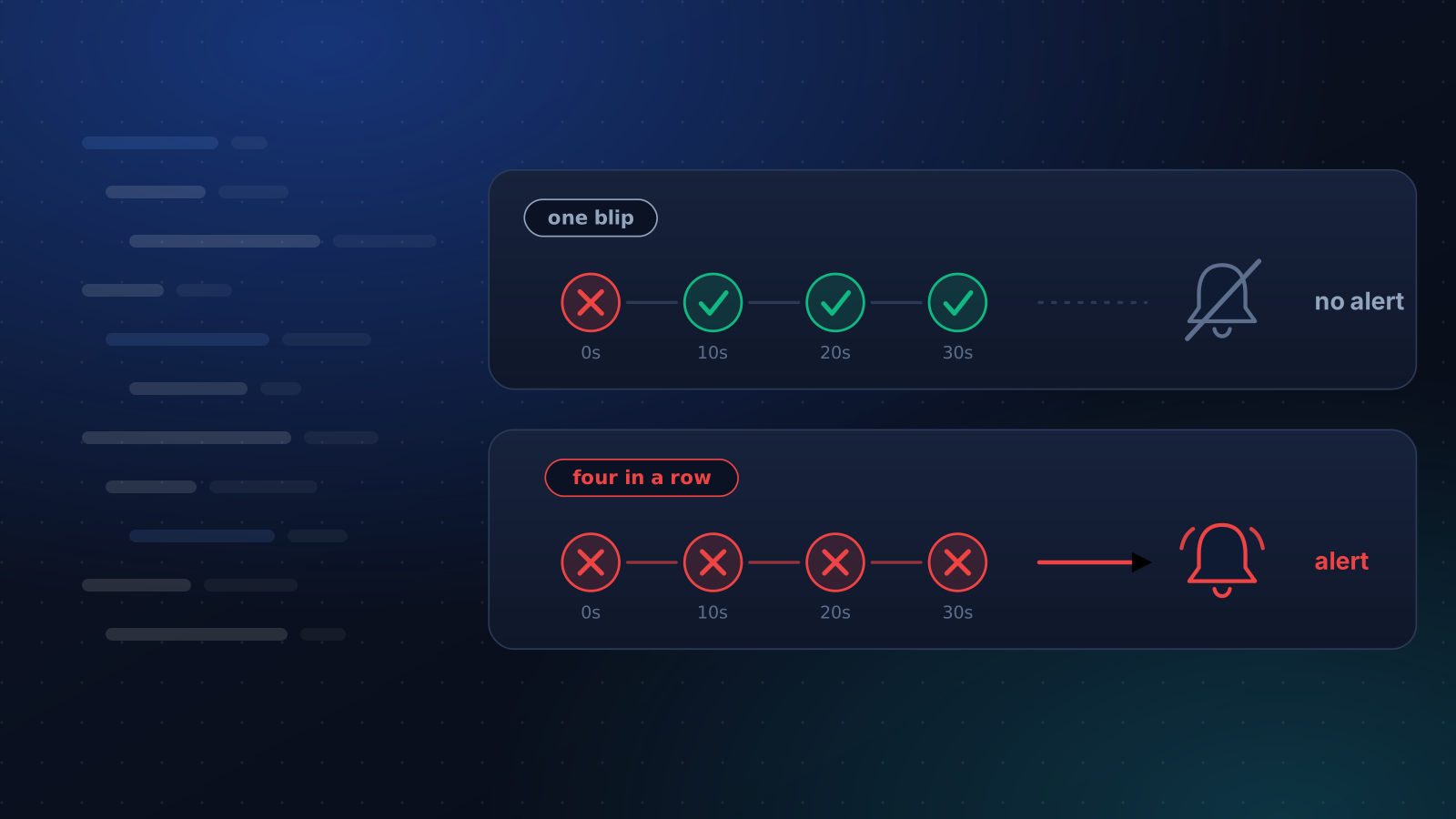
Why Your Uptime Monitor Sends False Alerts
Your monitor says the site is down and it is fine. The usual causes, how to tell which one you have, and how to cut the noise without going blind.
4 min read