

Security
Certbot Renewal Failed? Find the Cause
Certbot renewals fail weeks after issuance, when nobody is looking. How to read the error, the causes behind most failures, and how to hear about it in time.
By Techie Gain4 min read
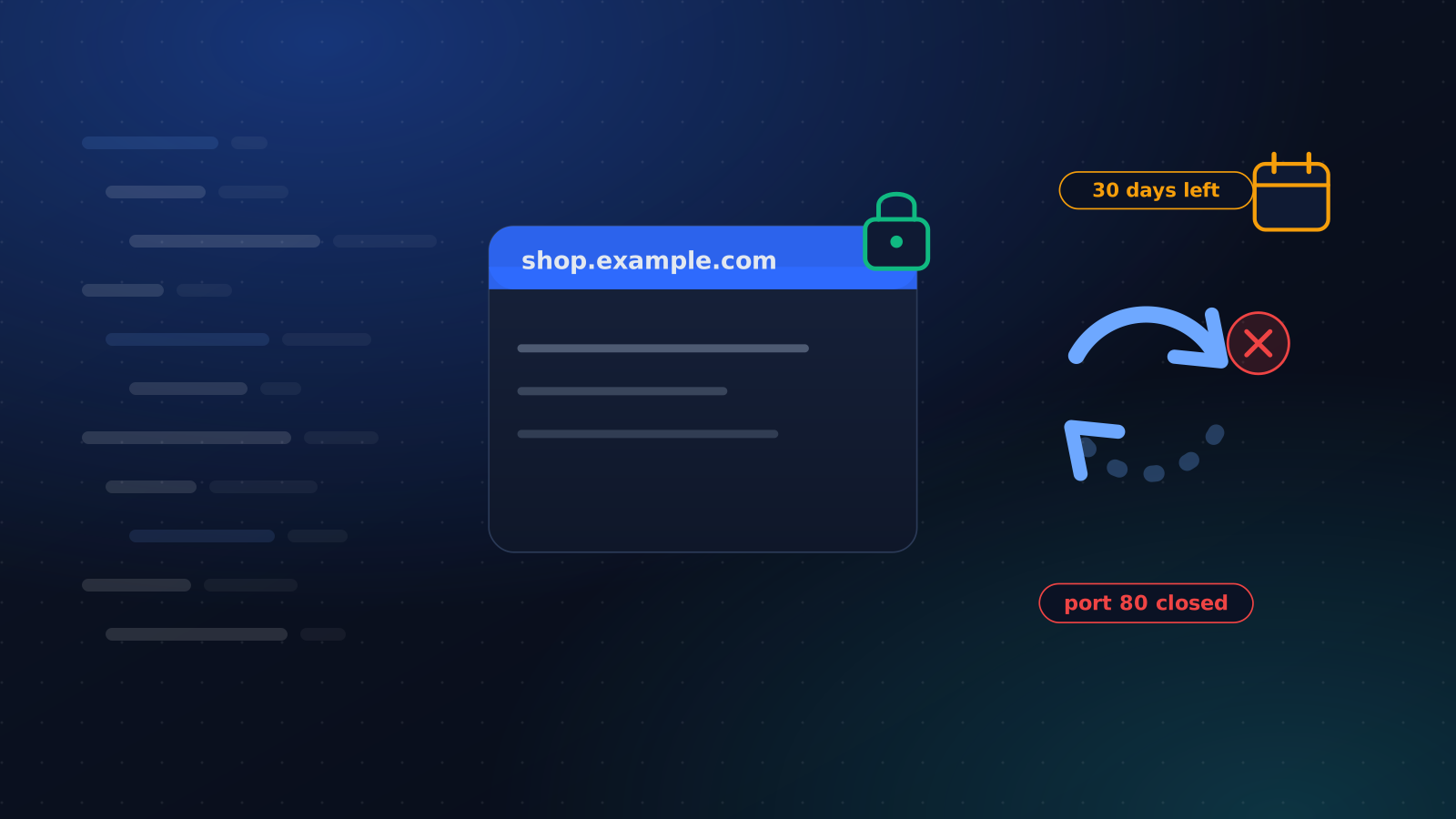
Certbot gets a certificate on day one and then nobody thinks about it. Let's Encrypt certificates last 90 days, certbot starts trying to renew with 30 left, and a renewal that quietly stops working leaves you about a month in which nothing visible happens. Since June 2025 Let's Encrypt no longer sends expiry emails either, so the first warning is often a customer.
Here is how to find out why a renewal failed, and the causes behind most of them.
Start with the dry run and the log
bash
sudo certbot renew --dry-run
sudo certbot certificates
sudo tail -n 40 /var/log/letsencrypt/letsencrypt.log
The dry run goes through the same steps against Let's Encrypt's staging environment and changes nothing. certbot certificates lists every certificate with its expiry date. The log has the full error, including what the validation server actually received, which is usually the whole answer.
Then check that something is asking for renewals at all. A package install has a systemd timer, which systemctl list-timers | grep certbot shows. A snap install uses snap.certbot.renew.timer. No timer means no renewals, whatever the configuration says.
Check how it was issued
A renewal replays whatever was used to issue the certificate, and that is stored in a file you can read:
bash
sudo grep -H -E '^(authenticator|installer) ' /etc/letsencrypt/renewal/*.confIf the authenticator is standalone, certbot runs its own tiny web server on port 80 to answer the challenge. That worked on the day, when nothing else was listening. Install nginx on the same server later and every renewal collides with it. If it is nginx or apache, certbot rewrote your web server configuration when it issued the certificate, and a deployment tool that regenerates that configuration quietly removes the change. webroot is the dull one that survives both.
Wildcard certificates need DNS validation, so their renewals depend on API credentials for your DNS provider, and those expire or get rotated too.
The cause is usually what answered
Let's Encrypt proves you control a name by requesting a file over plain HTTP on port 80. It follows redirects, up to ten of them, including to HTTPS, and it does not care whether the certificate at the other end is valid. So a blanket redirect is not what breaks renewal. The answer at the end of the road is.
- Your application answers instead. A
location /that proxies everything hands the challenge path to the app, which replies with its own 404. Serve the challenge from the port 80 block, above the redirect:
nginx
server {
    listen 80;
    server_name shop.example.com;

    location ^~ /.well-known/acme-challenge/ {
        root /var/www/letsencrypt;
    }

    location / {
        return 301 https://$host$request_uri;
    }
}- Port 80 is closed. Somebody hardened the server, reasoned that everything is HTTPS now, and shut it. This validation method works on port 80 and nowhere else.
- IPv6 answers differently. An AAAA record that points at an old host fails validation even though IPv4 is fine. Test both with
curl -4andcurl -6against the challenge path. - A hook stops the web server. A
--pre-hookthat stops nginx for a standalone renewal fails the moment something else holds the port, or the hook errors half way.
The renewal that worked and changed nothing
This is the one certbot cannot warn you about, because from its side nothing is wrong. The new certificate is on disk, and nginx is still serving the old one from memory until it reloads. Add a deploy hook, either --deploy-hook "systemctl reload nginx" or a script in /etc/letsencrypt/renewal-hooks/deploy/, and then look at what is actually served:
bash
echo | openssl s_client -connect shop.example.com:443 -servername shop.example.com 2>/dev/null | openssl x509 -noout -enddateThe date it prints is the one your visitors see.
Do not retry in a loop
Failed validations are rate limited. At the time of writing it is five failures an hour for one name, after which Let's Encrypt refuses to try again until the window passes. Fix the cause, run --dry-run, which has its own limits against staging, and only then run the real renewal.
When you do, name the certificate with --cert-name and leave out --force-renewal. Forcing a renewal that was not due uses up the duplicate certificate limit, five a week for the same set of names, and the habit of adding it "to be sure" is how people reach that limit on the day they can least afford to.
The lifetime is getting shorter
Let's Encrypt has announced that its certificates will last 64 days from 10 February 2027 and 45 days from 16 February 2028. A setup that only works while somebody is watching will fail more often, not less. The fix is the same as today: automated renewal, a reload hook, and a check from outside.
Be told in time
Alert on the expiry date of the certificate that is served, with a threshold shorter than your renewal window. Certbot starts at 30 days, so a warning at 14 days only fires when renewals have been failing for a couple of weeks. Where a person or another team does the renewing, 30 days gives them room.
Our SSL monitor works this way, and because it reads the certificate off the connection it catches the reload problem too. On servers set up with our playbooks, the Check Certificate Renewal playbook also runs a dry run and confirms the timer and the reload hook.
Keep reading
Monitoring
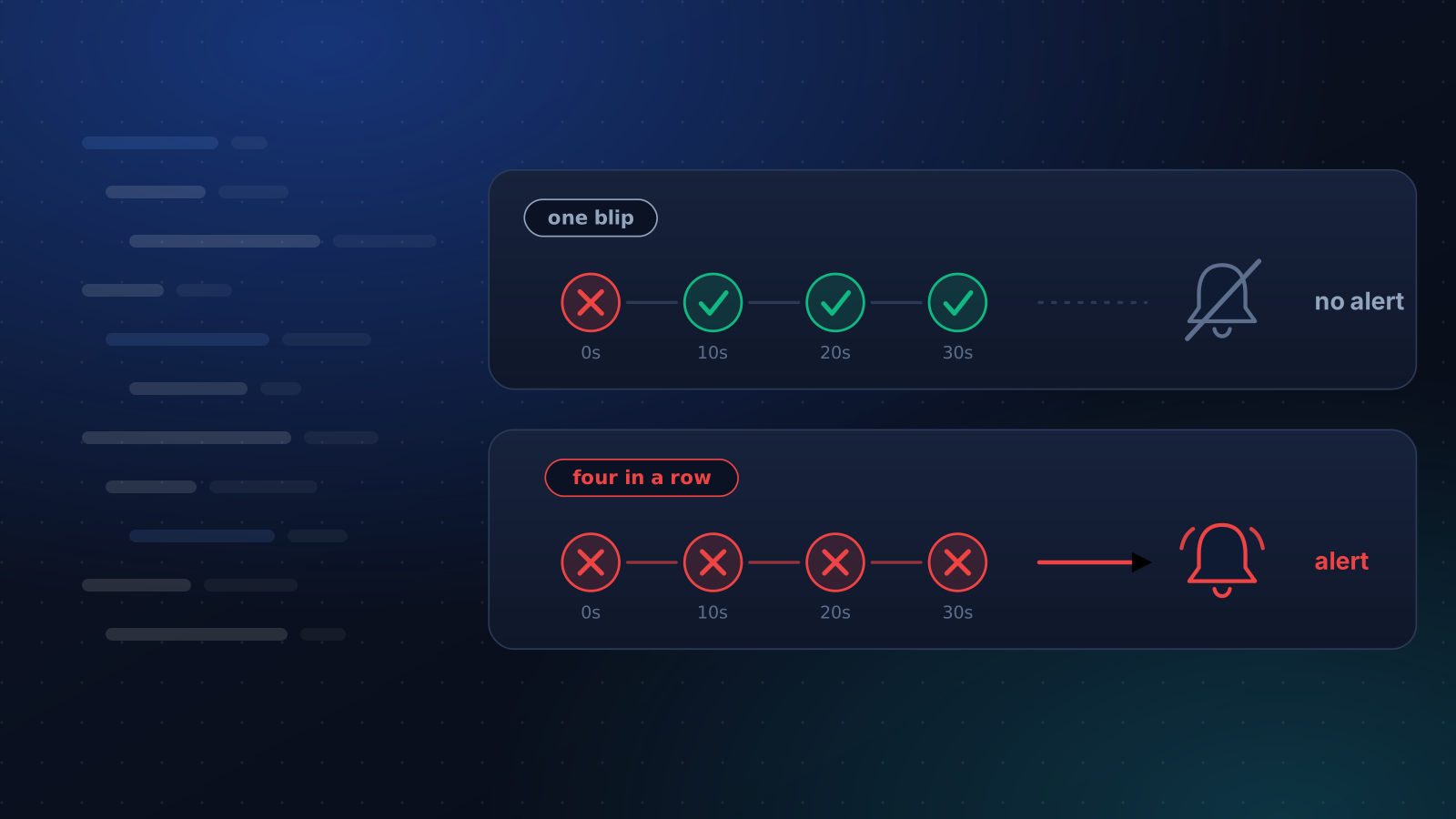
Why Your Uptime Monitor Sends False Alerts
Your monitor says the site is down and it is fine. The usual causes, how to tell which one you have, and how to cut the noise without going blind.
4 min read
Monitoring
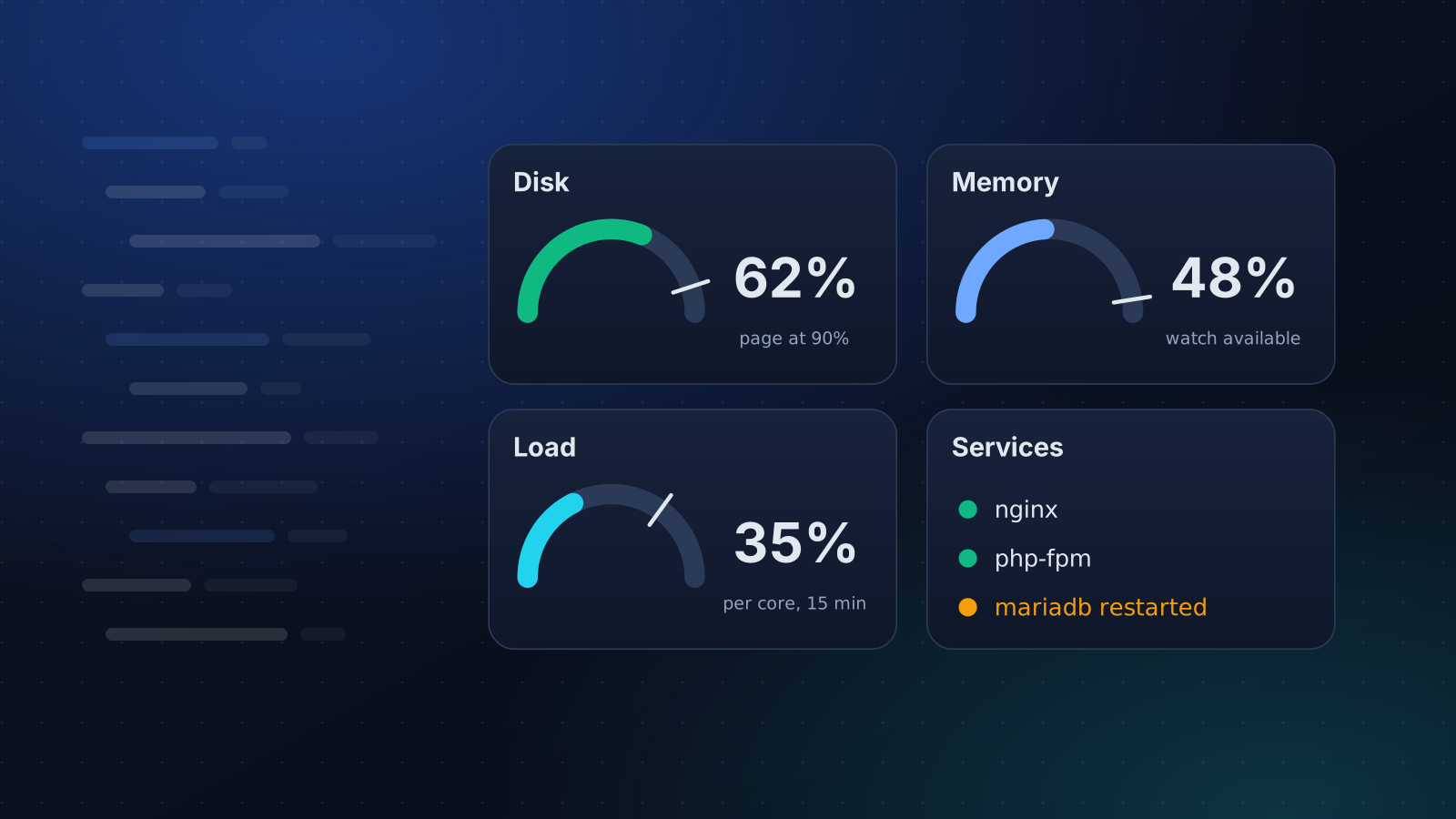
What to Monitor on a Linux Server
A short, opinionated list of what to watch on a Linux server, the thresholds worth alerting on, and what to leave out so alerts stay worth reading.
4 min read
Security
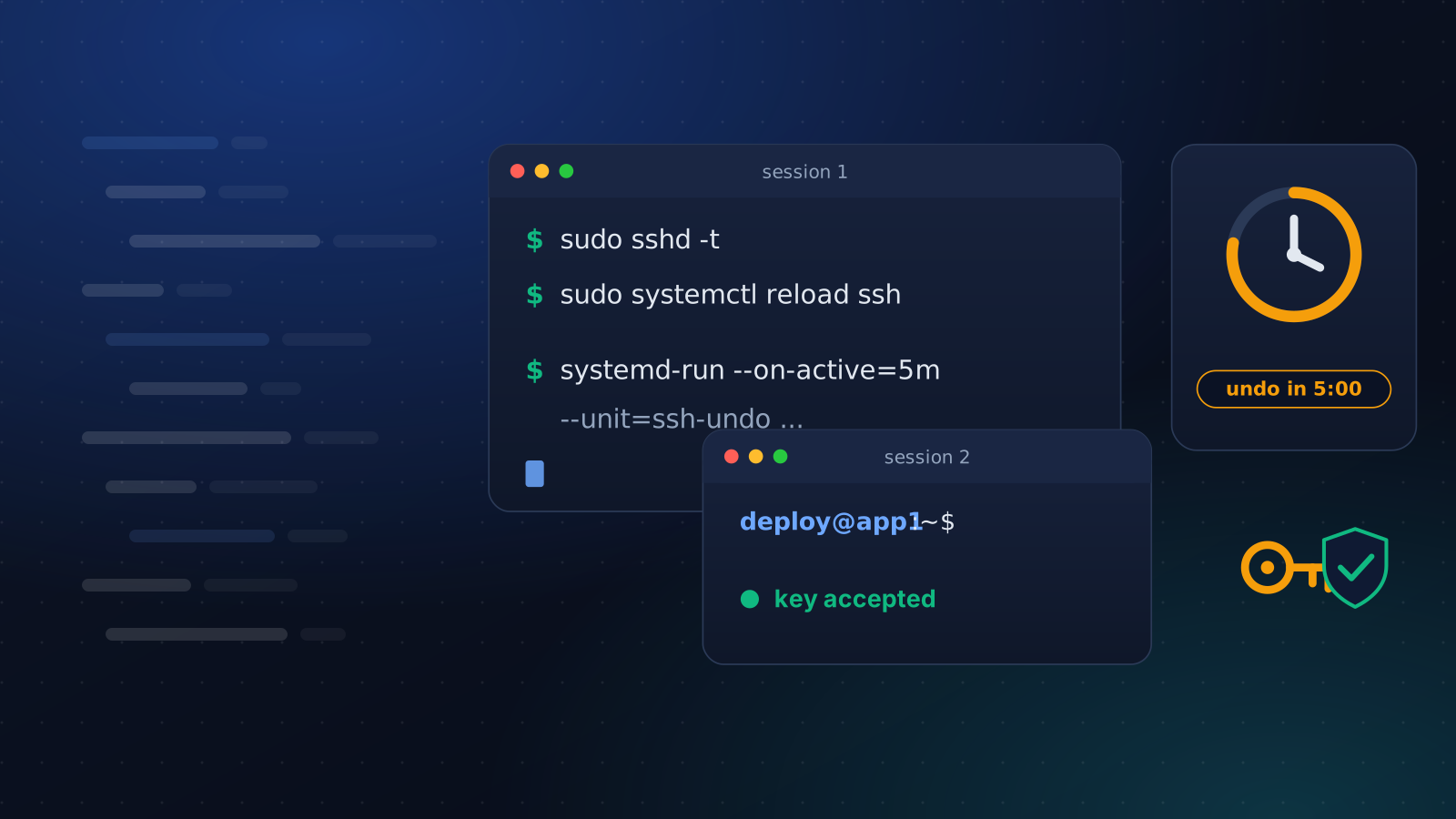
Harden SSH Without Locking Yourself Out
Turning off password logins takes one line and can cost you the server. The order that keeps a way in: a drop-in file, a second session and an undo timer.
4 min read