

Automation
Could Not Get Lock /var/lib/dpkg/lock-frontend: What to Do
apt stops with "Could not get lock /var/lib/dpkg/lock-frontend". How to see who holds it, when to wait, and why deleting the lock files makes it worse.
By Techie Gain4 min read
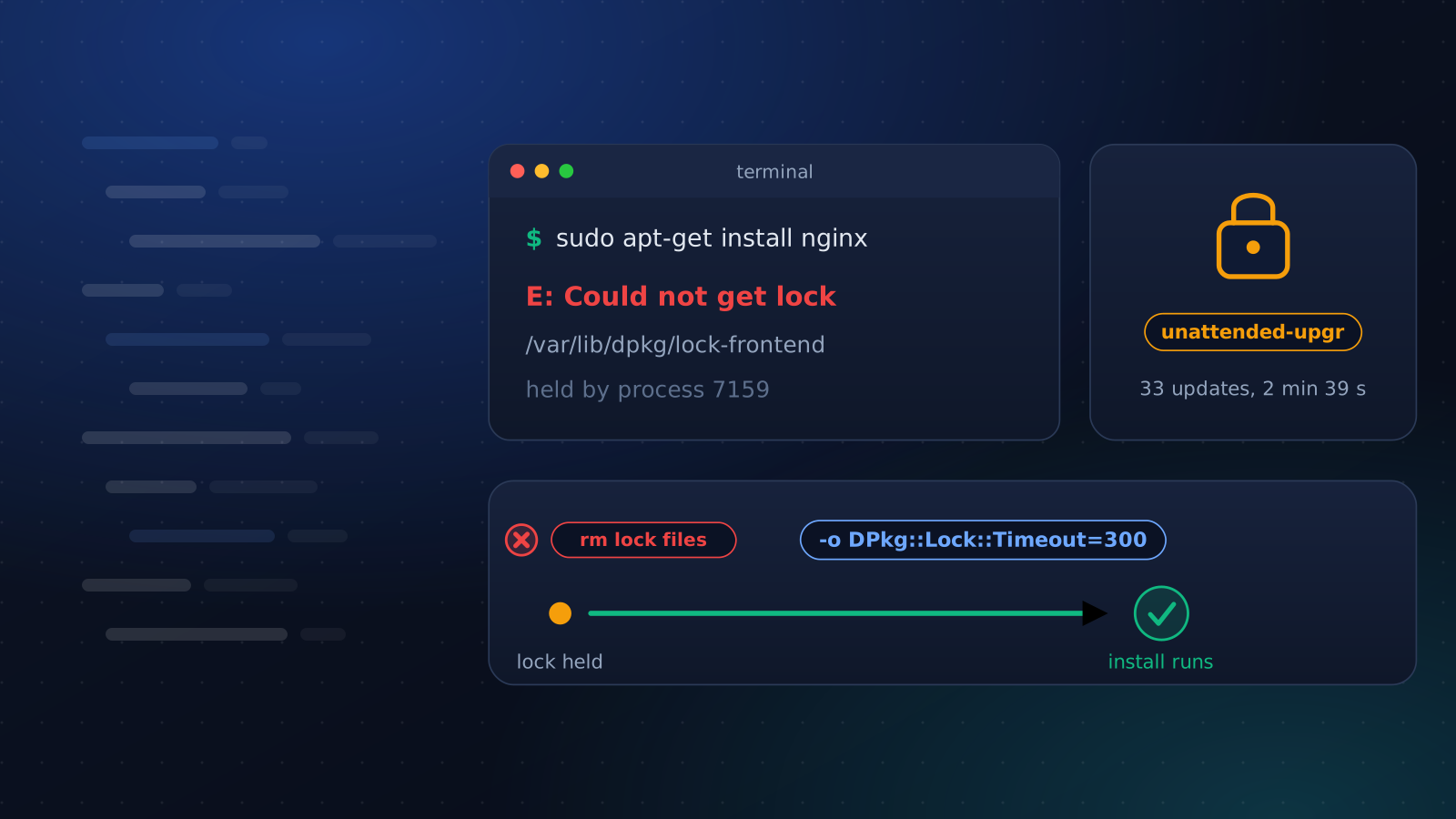
When apt prints this, another program is already changing the package database. apt takes locks so that two programs never do that at once, and it tells you who holds them. On a new server the holder is nearly always the automatic update job, and the right move is to wait.
We reproduced each message in this post on Debian 12 (apt 2.6.1) and Ubuntu 24.04 (apt 2.8.3) in test containers. We used a package whose install step takes 40 seconds, so there was always a holder to find. Both releases behaved the same way.
Read the message
E: Could not get lock /var/lib/dpkg/lock-frontend. It is held by process 7159 (apt-get)
E: Unable to acquire the dpkg frontend lock (/var/lib/dpkg/lock-frontend), is another process using it?
The number is the process ID and the name in brackets is the program holding the lock. It may be your own second SSH session, a provisioning tool or a control panel, as well as the system's update job. Confirm it, and see how long it has been running:
bash
sudo fuser -v /var/lib/dpkg/lock-frontend
ps -o pid,etime,args -p 7159
There are four lock files, and the message names the one that blocked you. /var/lib/dpkg/lock-frontend is taken by apt, and by dpkg when you run it directly. /var/lib/dpkg/lock is dpkg's own. /var/cache/apt/archives/lock guards downloads, and /var/lib/apt/lists/lock guards apt-get update. During an install we found apt-get holding the first and third while dpkg held the second. The lists lock was free.
Who holds it on a new server
Ubuntu server images normally have unattended-upgrades installed and switched on. Two systemd timers, apt-daily.timer and apt-daily-upgrade.timer, run /usr/lib/apt/apt.systemd.daily to refresh the package lists and install updates. Debian 12 has the same two timers. The holder shows up as unattended-upgr, because process names are cut to 15 characters. In our Ubuntu test one run installed 33 updates in about two and a half minutes. Its log says how far it has got:
bash
sudo tail -f /var/log/unattended-upgrades/unattended-upgrades.log"Packages that will be upgraded" means it is working, and "All upgrades installed" means the lock is free again.
Wait, and let your commands wait
If the log is moving, wait. The apt command does this itself. On both releases its configuration sets DPkg::Lock::Timeout to 120 seconds, and in our test it kept printing "Waiting for cache lock" for as long as we let it. apt-get does not wait at all. It fails immediately with the message above unless you give it a timeout:
bash
sudo apt-get -o DPkg::Lock::Timeout=300 install -y nginxWe tested it both ways. With 10 seconds, apt-get waited 10 seconds and gave up. With 120, it waited for the holder, about 44 seconds in all, and then installed. Put the option in any script, image build or provisioning step that calls apt-get. Where you cannot rely on it, wait for the lock yourself:
bash
while sudo fuser /var/lib/dpkg/lock-frontend >/dev/null 2>&1; do sleep 5; doneIn our test this loop ended when the holder did, and the install after it worked.
The wait has two limits. It covers the dpkg locks only: while another process held the lists lock, apt-get -o DPkg::Lock::Timeout=8 update still failed within two seconds with Could not get lock /var/lib/apt/lists/lock, so a refresh needs its own retry. And a timeout does not help when the holder never finishes.
If the holder is stuck
A holder with no log progress for several minutes and an elapsed time that keeps growing may be hung. Stop the service that started it, which for the daily job is sudo systemctl stop apt-daily-upgrade.service, rather than killing the process, so systemd cleans up what it started. Even a clean stop in the middle of an install can leave a package half configured, which is the next section.
Do not delete the lock files. While an install ran, we removed lock-frontend and lock. The install carried on. A second apt-get then started beside it and claimed that dpkg was interrupted, which was untrue because the first was still running. The lock belongs to the open file, so deleting the file frees nothing and only lets a second process in.
A lock file with no holder is harmless, so there is nothing to clean up. After we killed a holder with kill -9, the empty file stayed on disk, fuser printed nothing and the next apt-get ran without a word about locks. The kernel drops a lock when its process dies, and the file is not what you were waiting for.
dpkg was interrupted
This is a different error, and the holder is gone:
E: dpkg was interrupted, you must manually run 'dpkg --configure -a' to correct the problem.It follows an install that was cut off: a dropped SSH session, a power cut, a killed process. We killed an install during its post-install step. dpkg -l showed the package as iF, half configured, and the next install refused until we ran sudo dpkg --configure -a. That finished the job and the state became ii. Run it only when nothing else is installing, or you are working against the holder.
One server or forty
Waiting is easy on one server and impractical on forty. Update Packages gives every apt command -o DPkg::Lock::Timeout=300, so it waits up to five minutes for the dpkg locks. A lock that is still held is treated as a temporary failure, and the step is tried again, up to twice. It never removes lock files or stops the process that holds one. If its refresh of the package lists meets the lists lock, that step reports a problem and the run goes on with the lists the server already has.
For the order to patch in, see patching Linux servers without breaking production. Once the updates are installed, checking whether a server needs a reboot covers what is left to do.
Keep reading
Automation
How to Patch Linux Servers Without Breaking Production
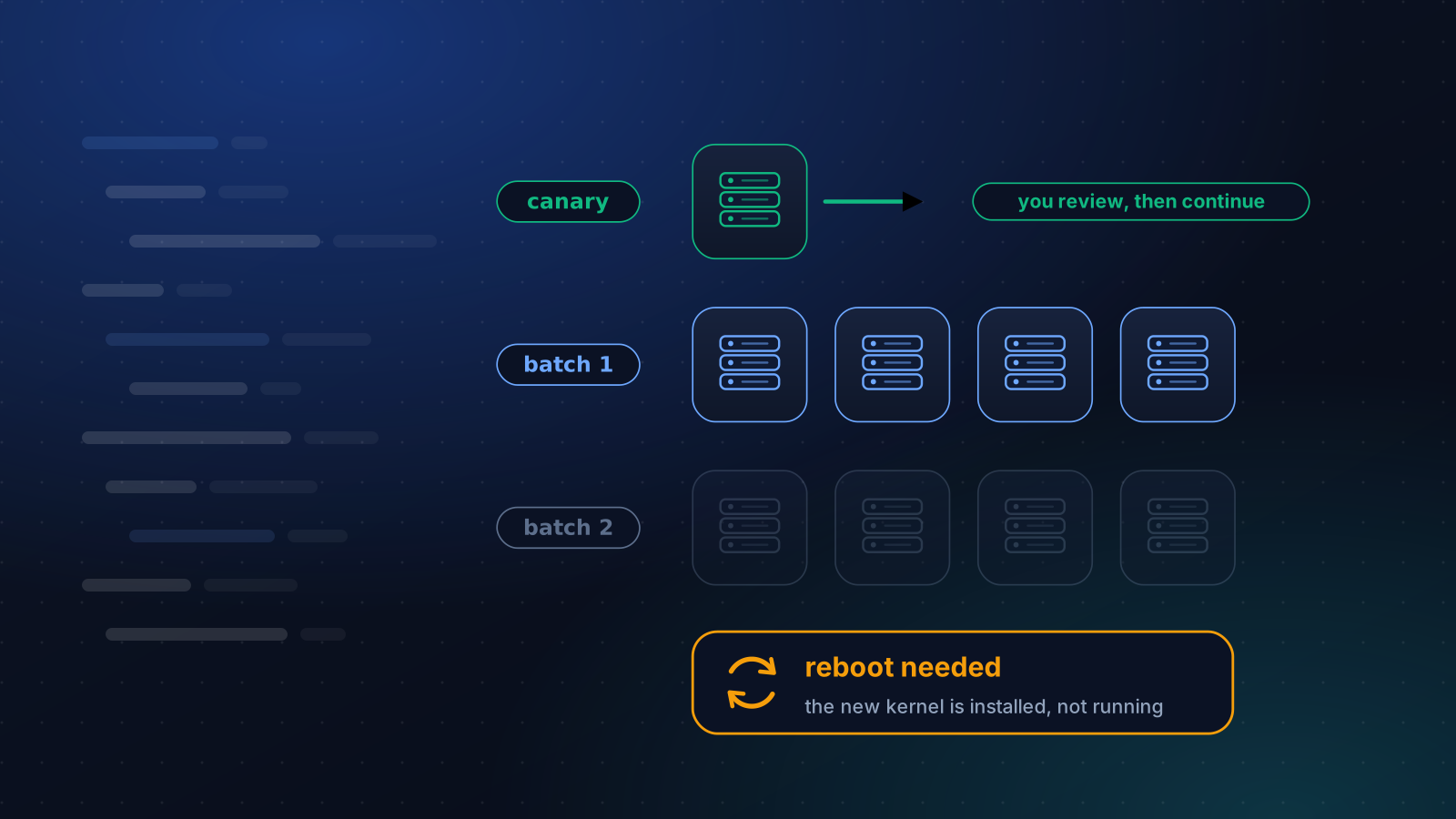
How often to patch, what to automate and what to stage, how to handle reboots, and a canary routine that a small team can keep up month after month.
5 min read
Automation
How to Check If a Linux Server Needs a Reboot
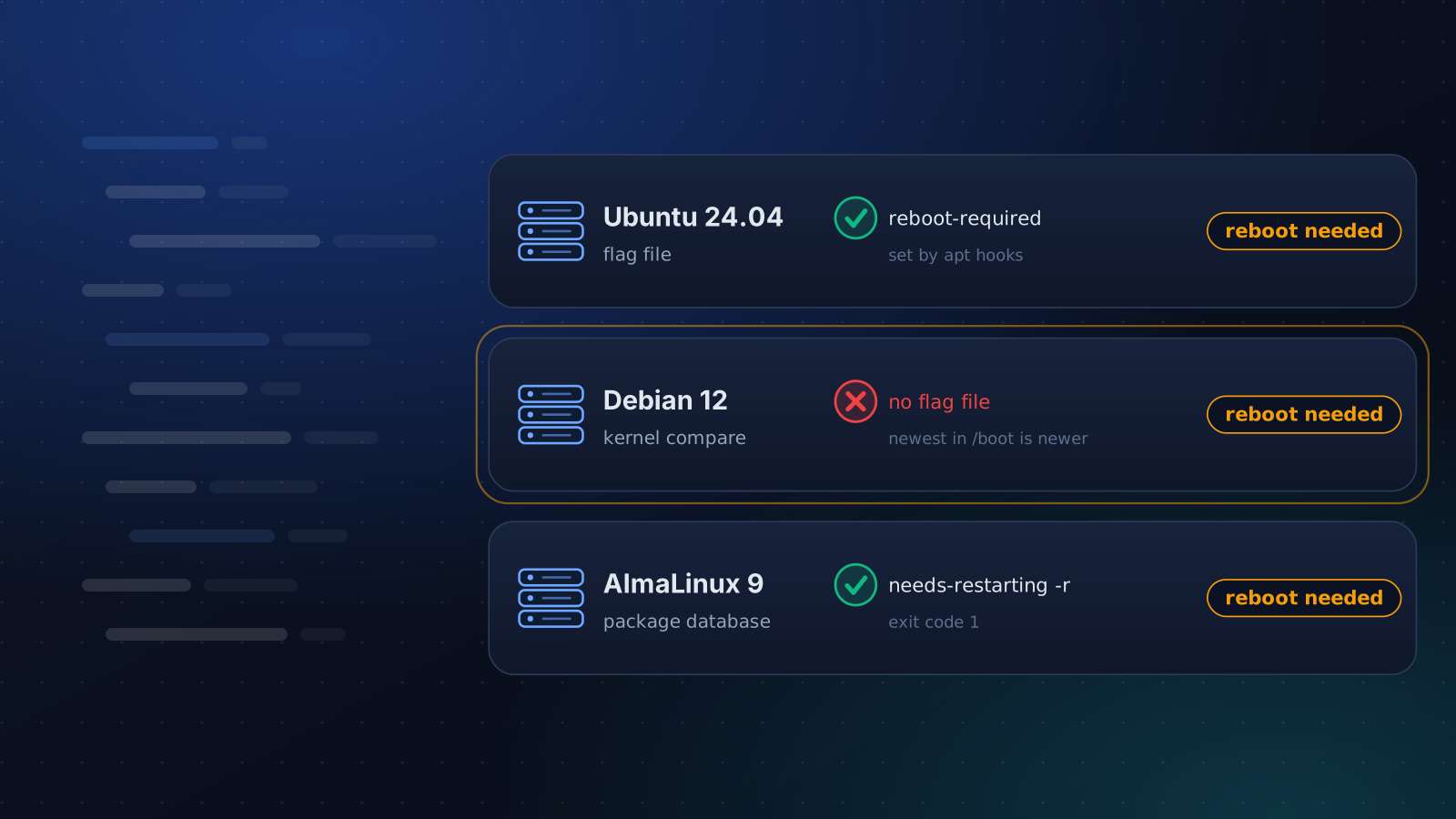
Ubuntu leaves a flag file, RHEL has needs-restarting and Debian often has neither. How to tell a restart from a reboot and check every server the same way.
5 min read
Operations
Ubuntu 20.04, Debian 11 and Amazon Linux 2 Are End of Life
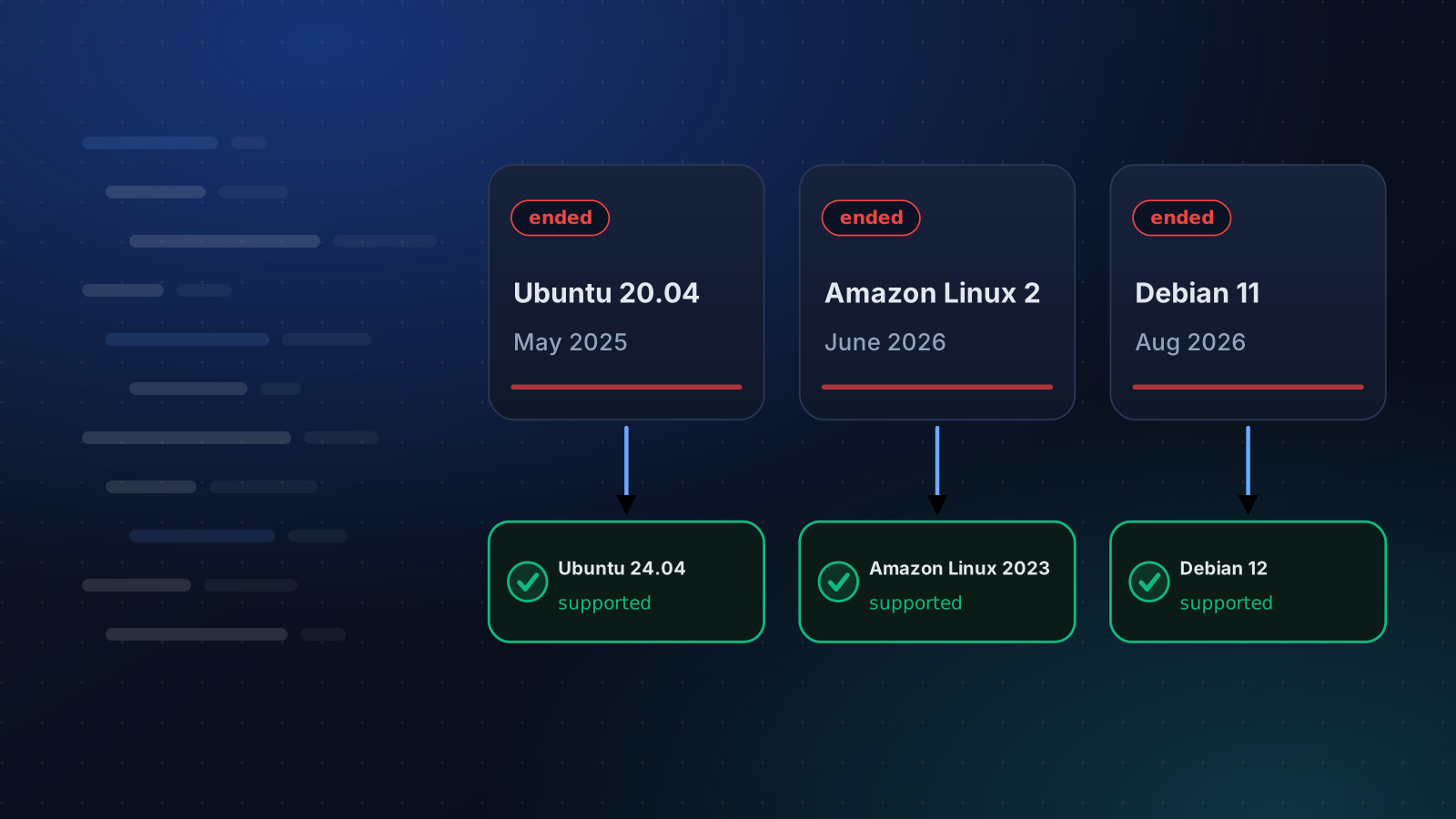
Ubuntu 20.04 lost standard support in May 2025, Amazon Linux 2 on 30 June 2026 and Debian 11 on 31 August 2026. What that means and how to move.
4 min read